Step 1: Switch n the Android TV
Power on your Android TV.
Wait for the home screen to appear.
Make sure Bluetooth is enabled on the TV.
Step 2: Open Bluetooth Settings Using your TV remote:
Open Settings
Select Bluetooth
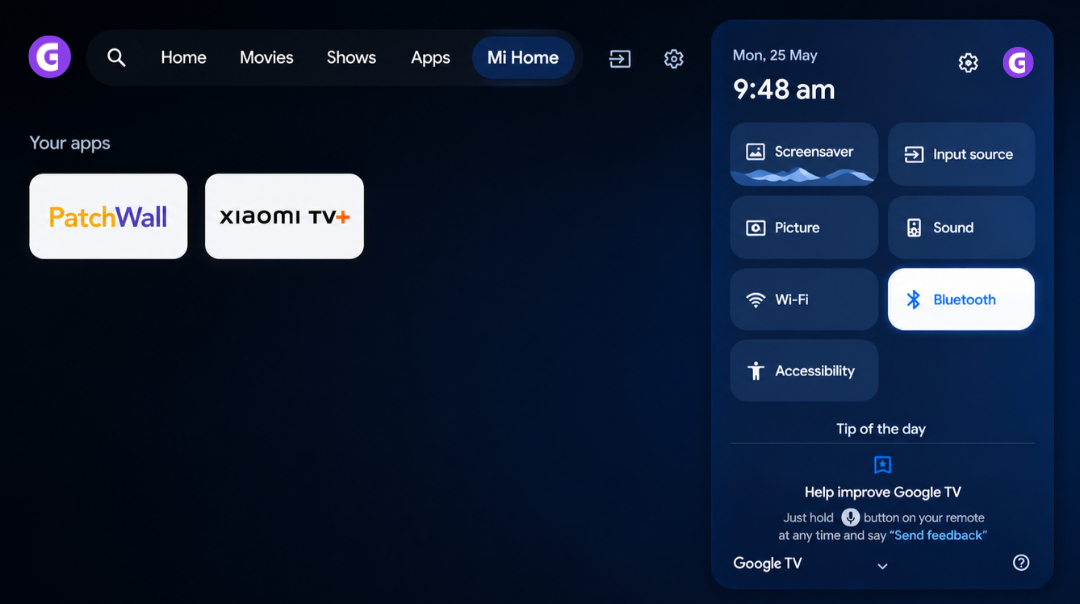
Tap Add Device or Pair Accessory
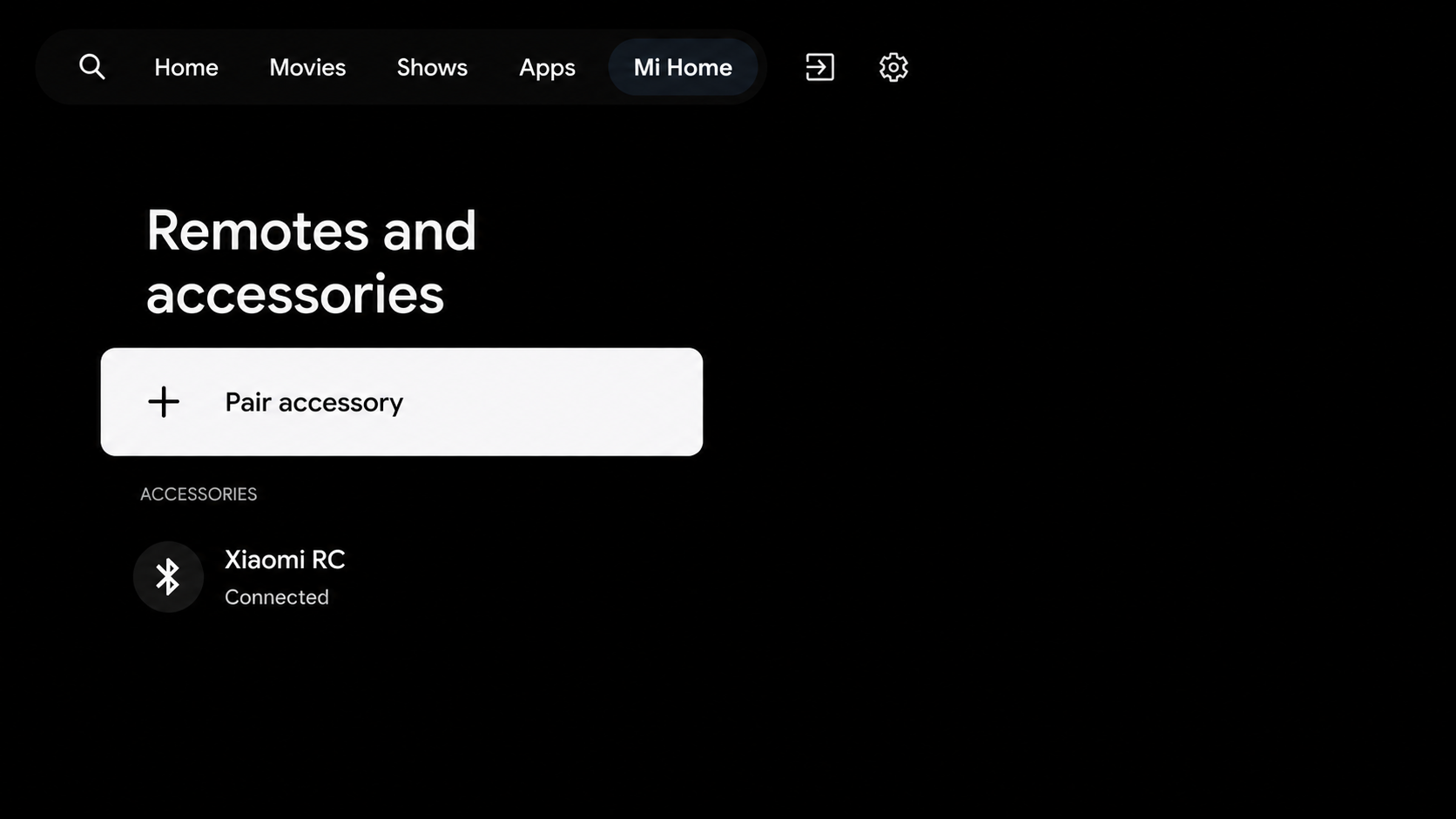
Menu names may vary slightly depending on your TV brand
Step 3: Pair the GAMR Pad
Confirm the GAMR "G" logo is blinking.
On the TV's Bluetooth screen, look for GAMR
Select the device
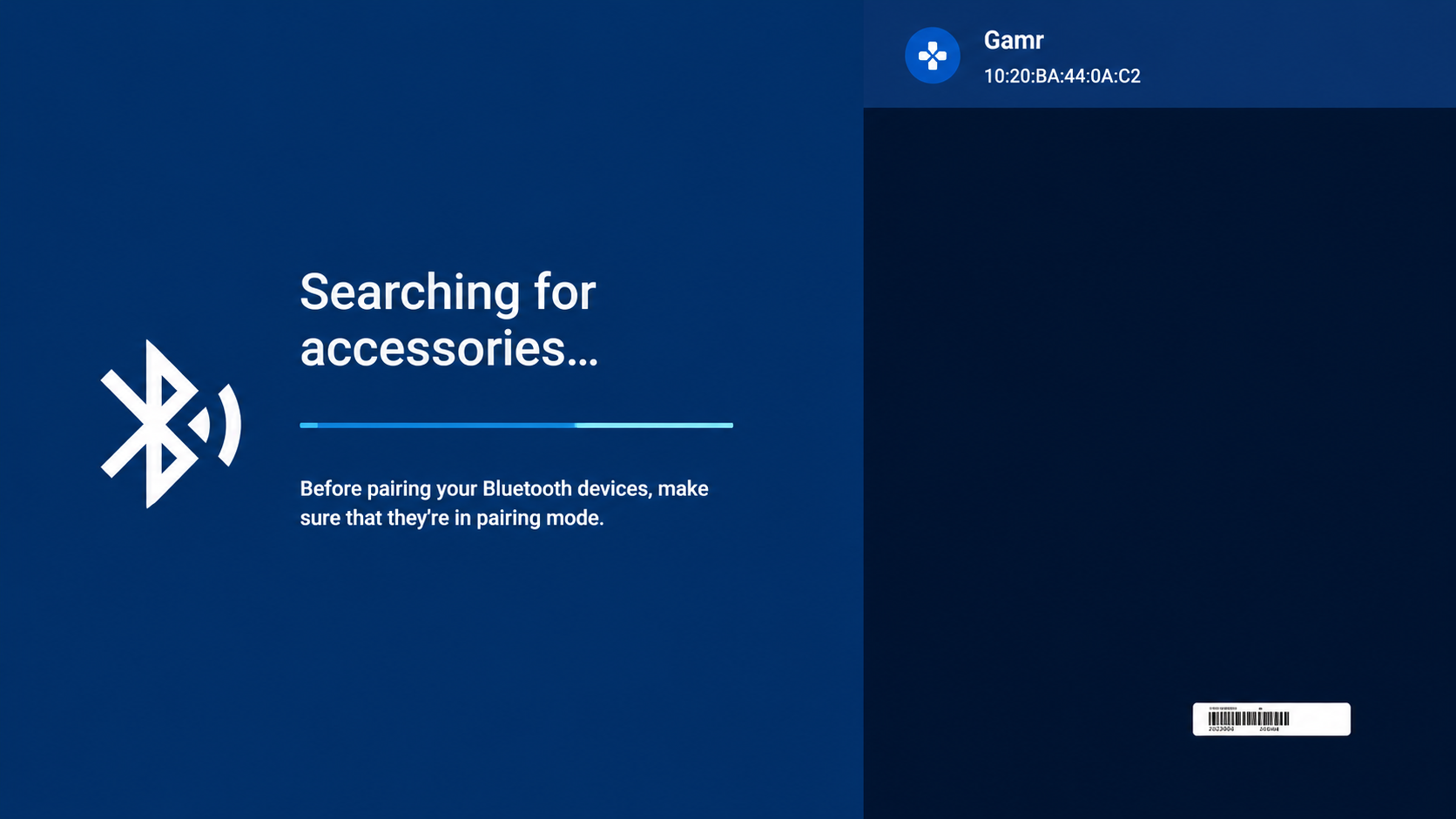
Tap Pair and wait a few seconds.
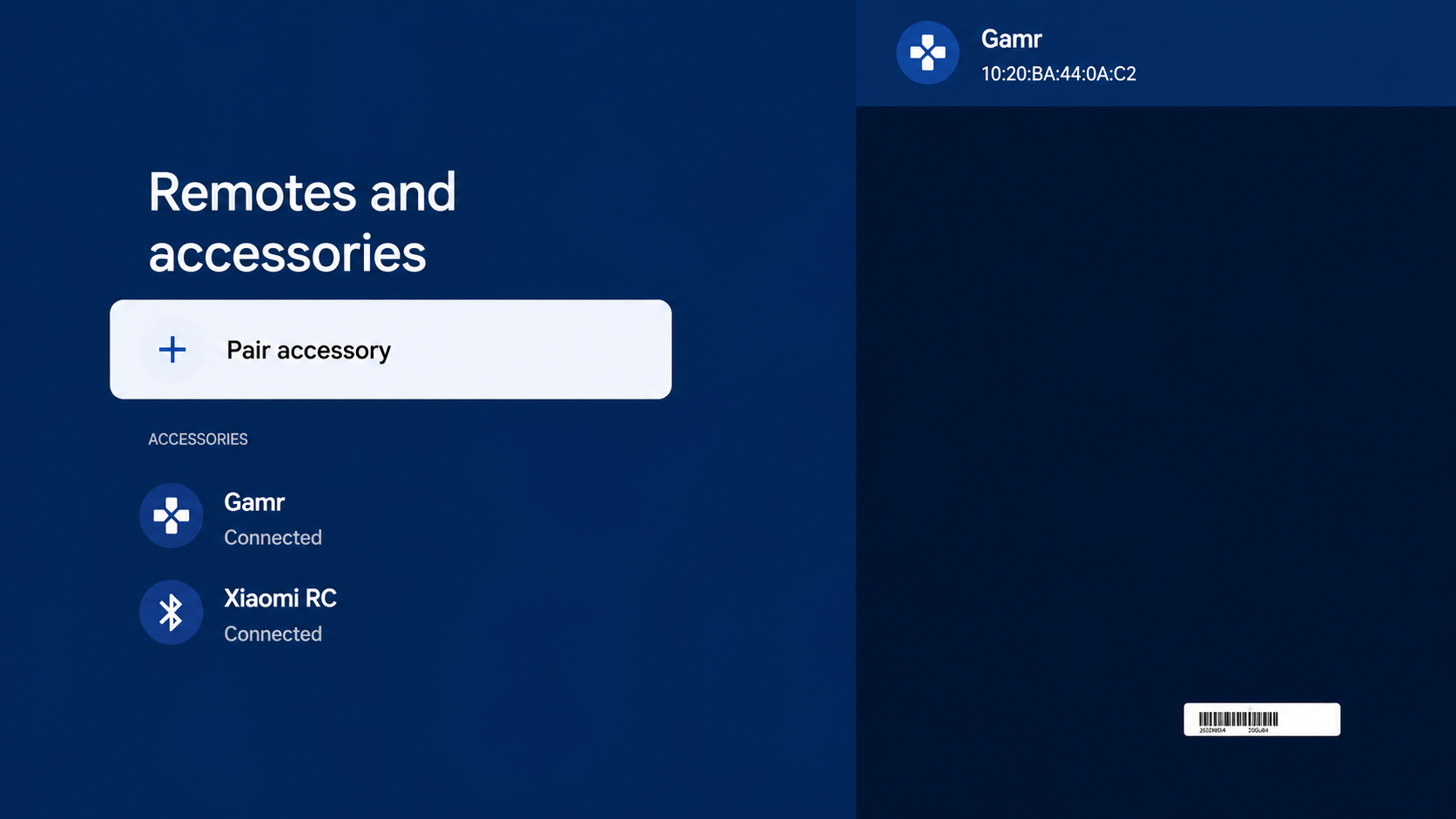
Successful Connection
The blinking logo becomes a steady glow.
Your TV displays Connected or Paired Successfully
Step 4: Start Gaming
Return to the Android TV home screen.
Open your preferred gaming app.
Suggested app categories:
Cloud gaming apps
Android TV games
Retro emulators
Racing, fighting, and sports games
Was this article helpful?
That’s Great!
Thank you for your feedback
Sorry! We couldn't be helpful
Thank you for your feedback
Feedback sent
We appreciate your effort and will try to fix the article