PC / Laptop (Windows)
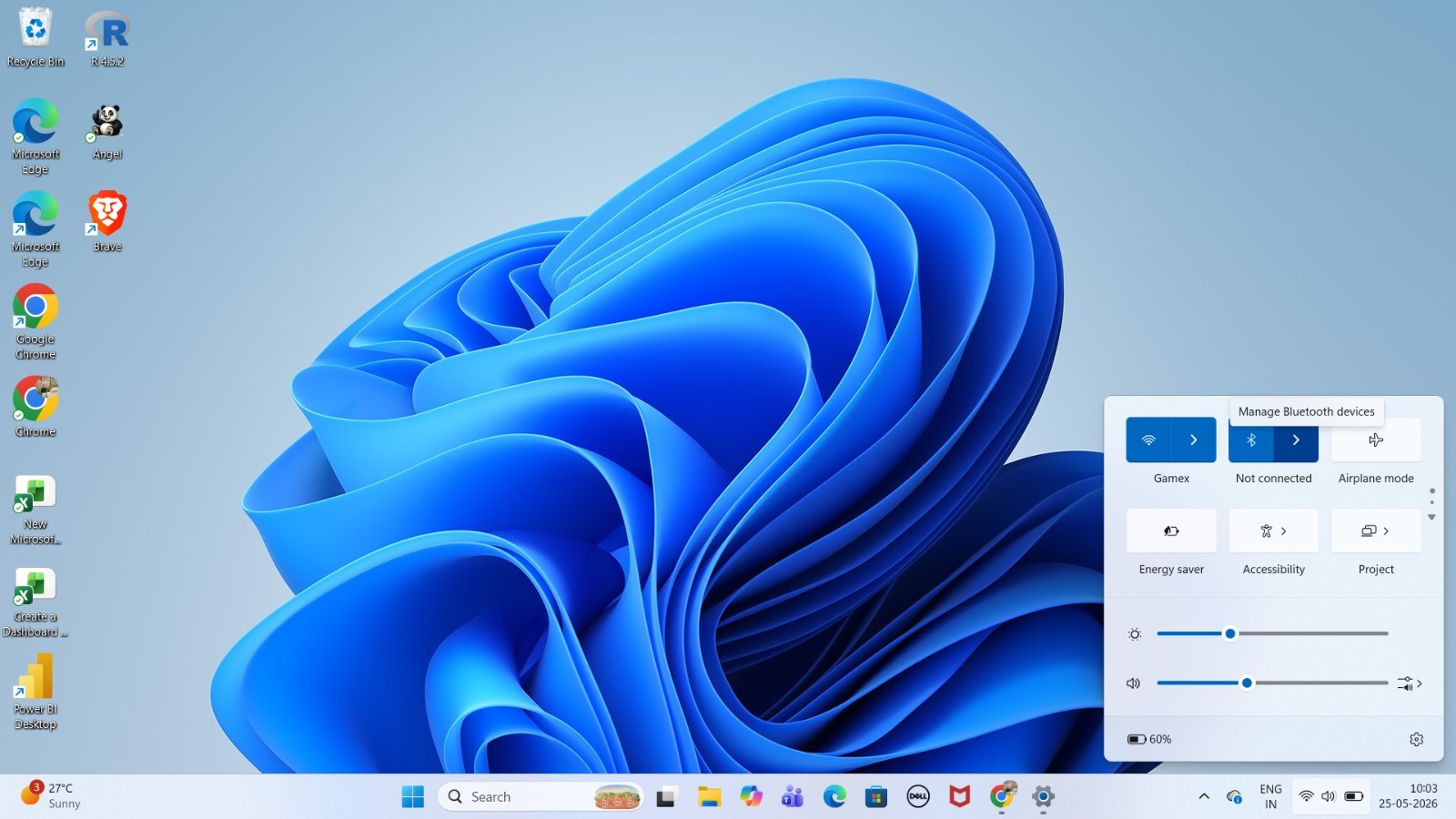
Step 1: Open Bluetooth Settings
Go to Settings.
Select Bluetooth & Devices.
Toggle Bluetooth On.
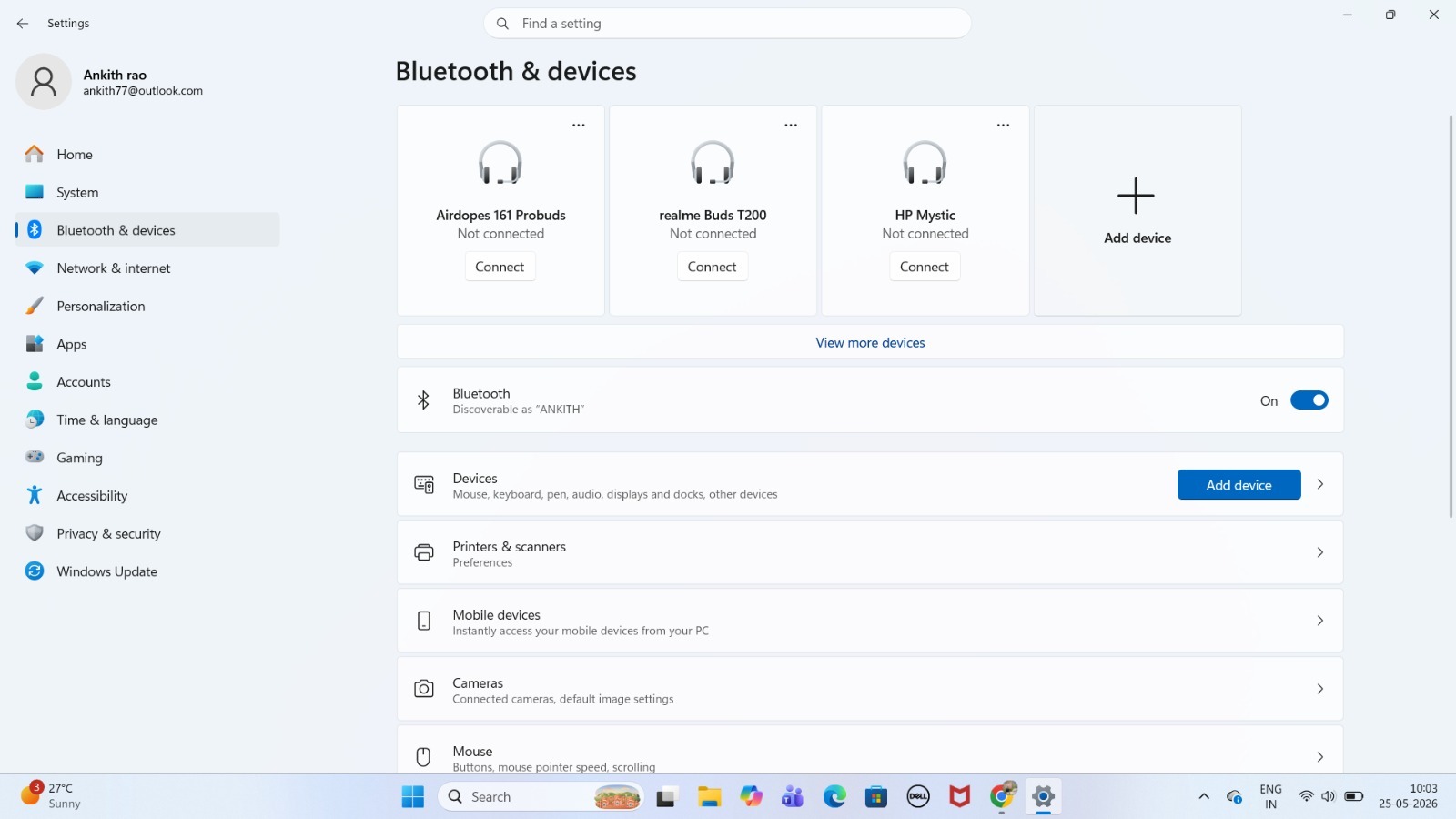
Step 2: Add a Device
Click Add Device.
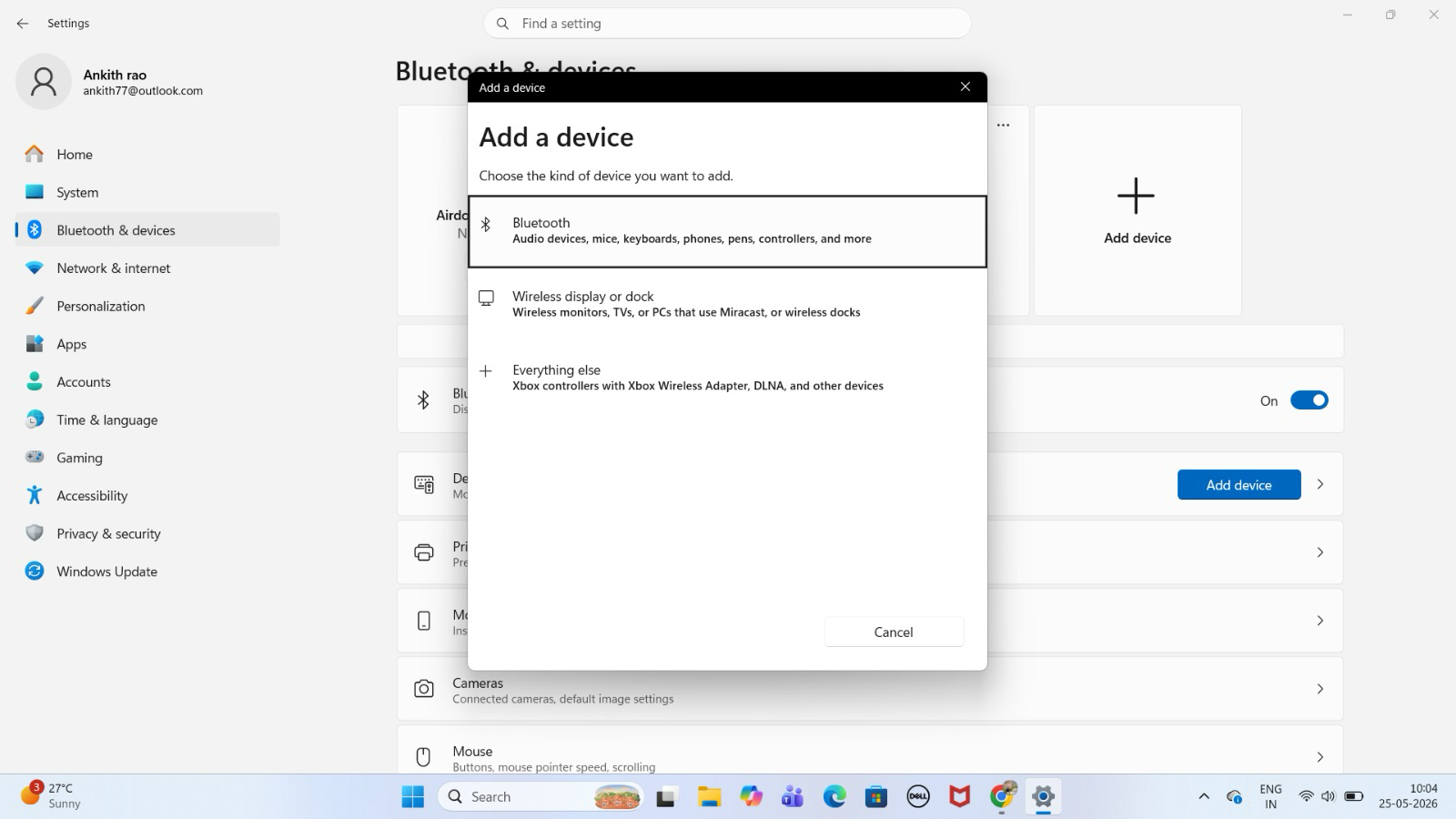
2. Select Bluetooth
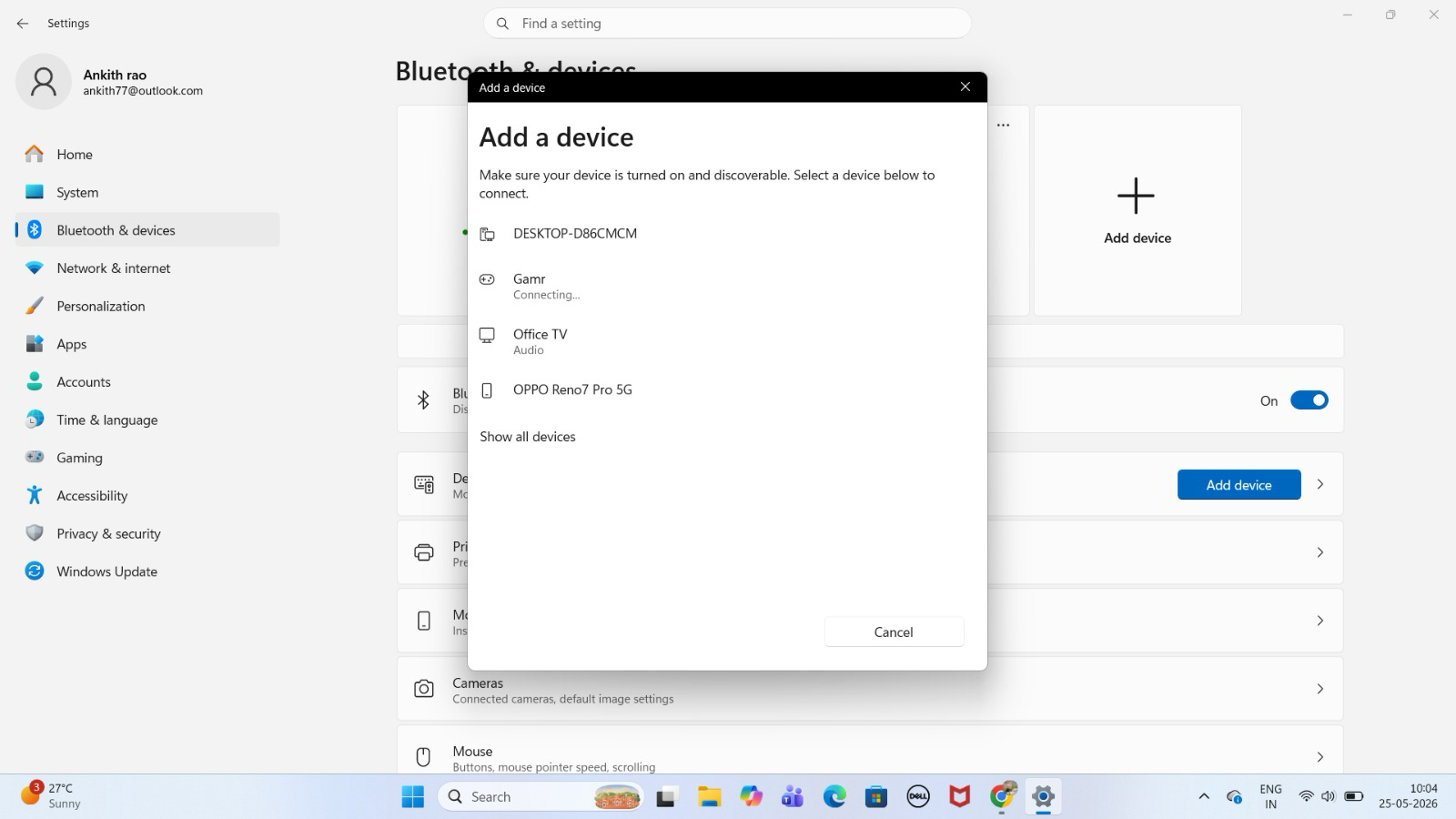
Step 3: Pair the GAMR Pad
Confirm the "G" logo is blinking.
Select GAMR
Click Connect.
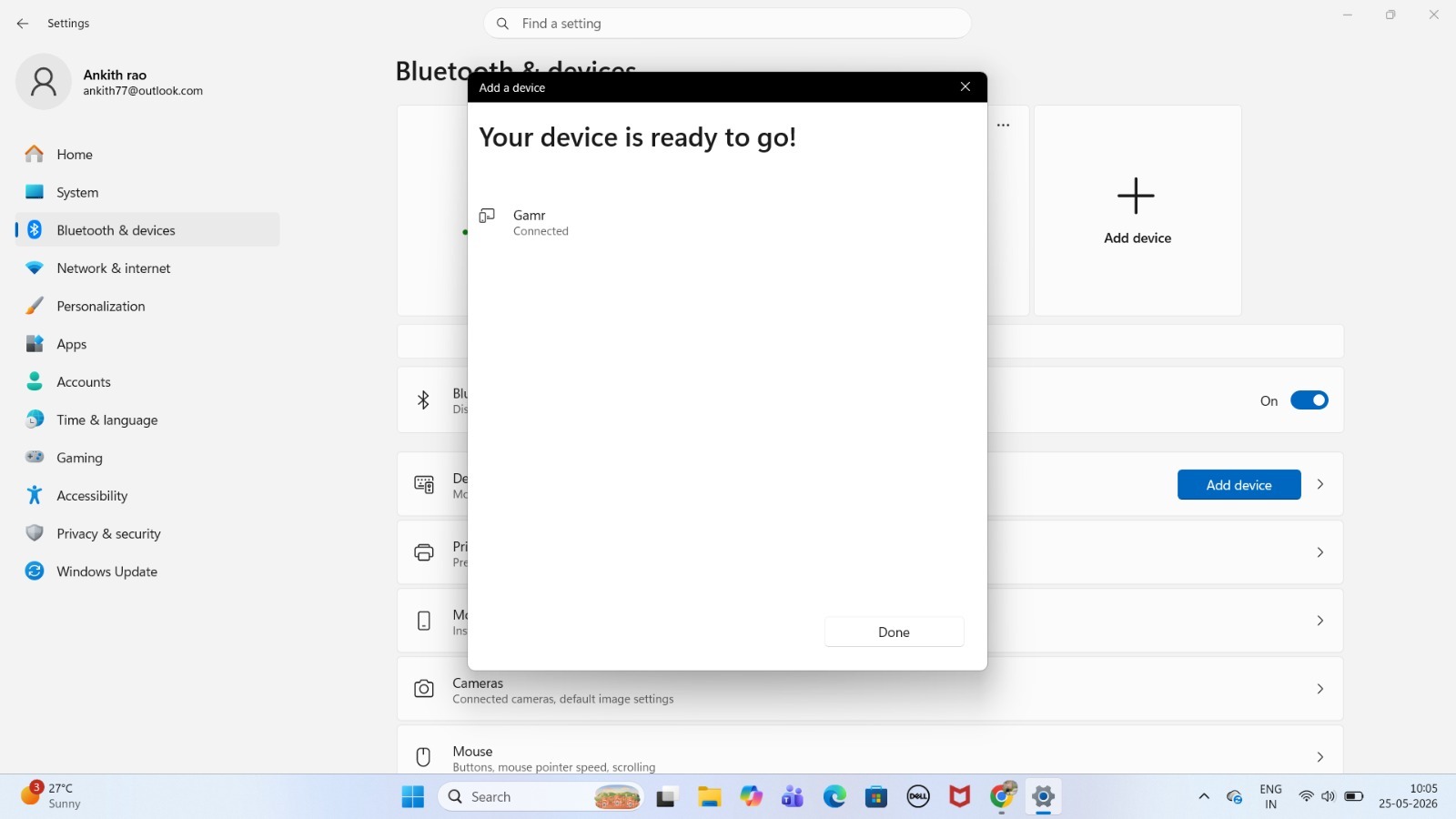
4. You are connected
Step 4: Start Gaming
Open Steam, Xbox Cloud Gaming, an emulator, or any supported game.
Start playing.
Was this article helpful?
That’s Great!
Thank you for your feedback
Sorry! We couldn't be helpful
Thank you for your feedback
Feedback sent
We appreciate your effort and will try to fix the article