Step 1: Connect the GAMR TV Box
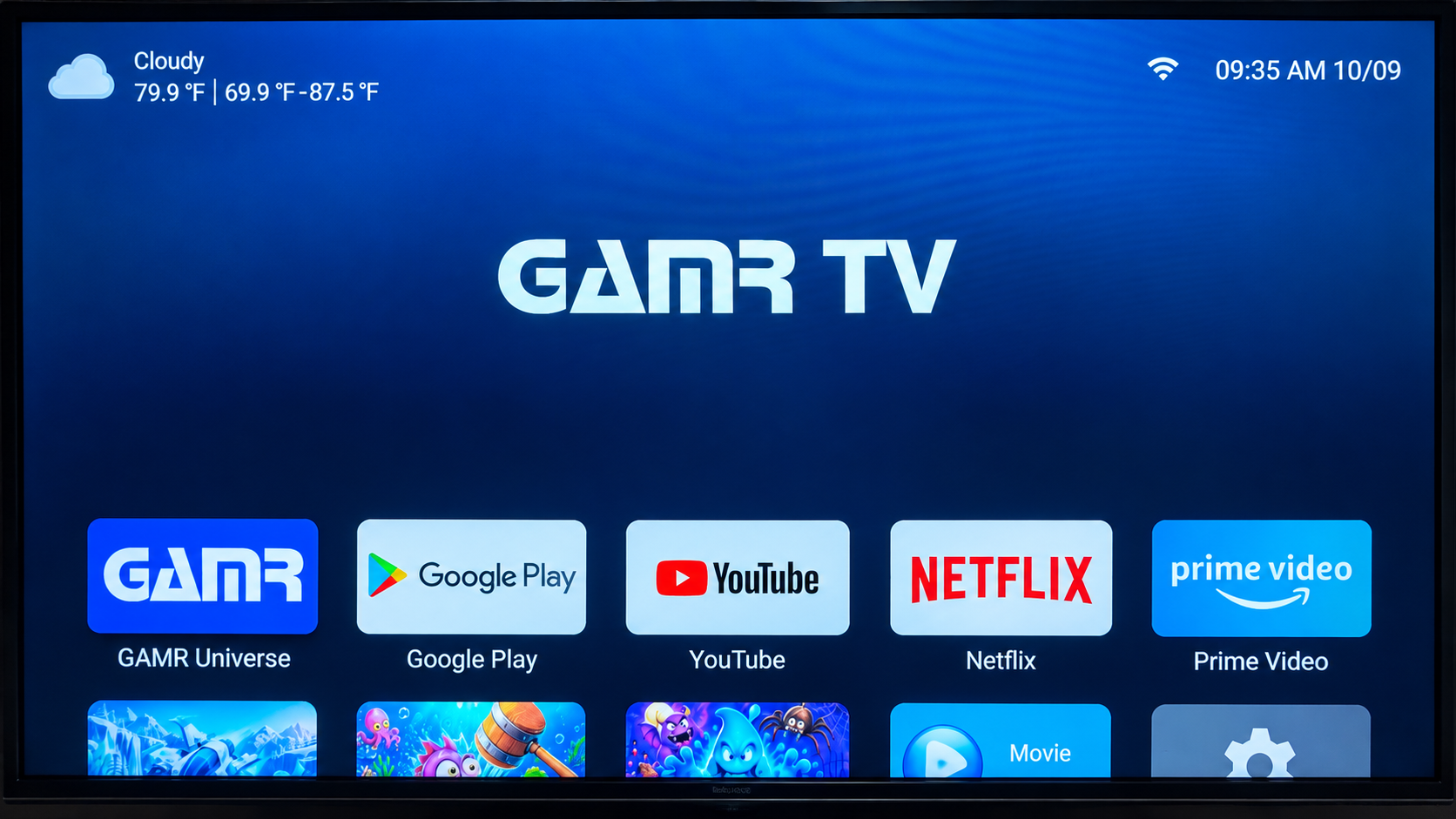
- Connect your GAMR TV Box to your TV by connecting the power adapter and HDMI Cable.
- Turn on the GAMR TV Box and wait for the GAMR TV Box home screen to appear.
Step 2: Open Settings
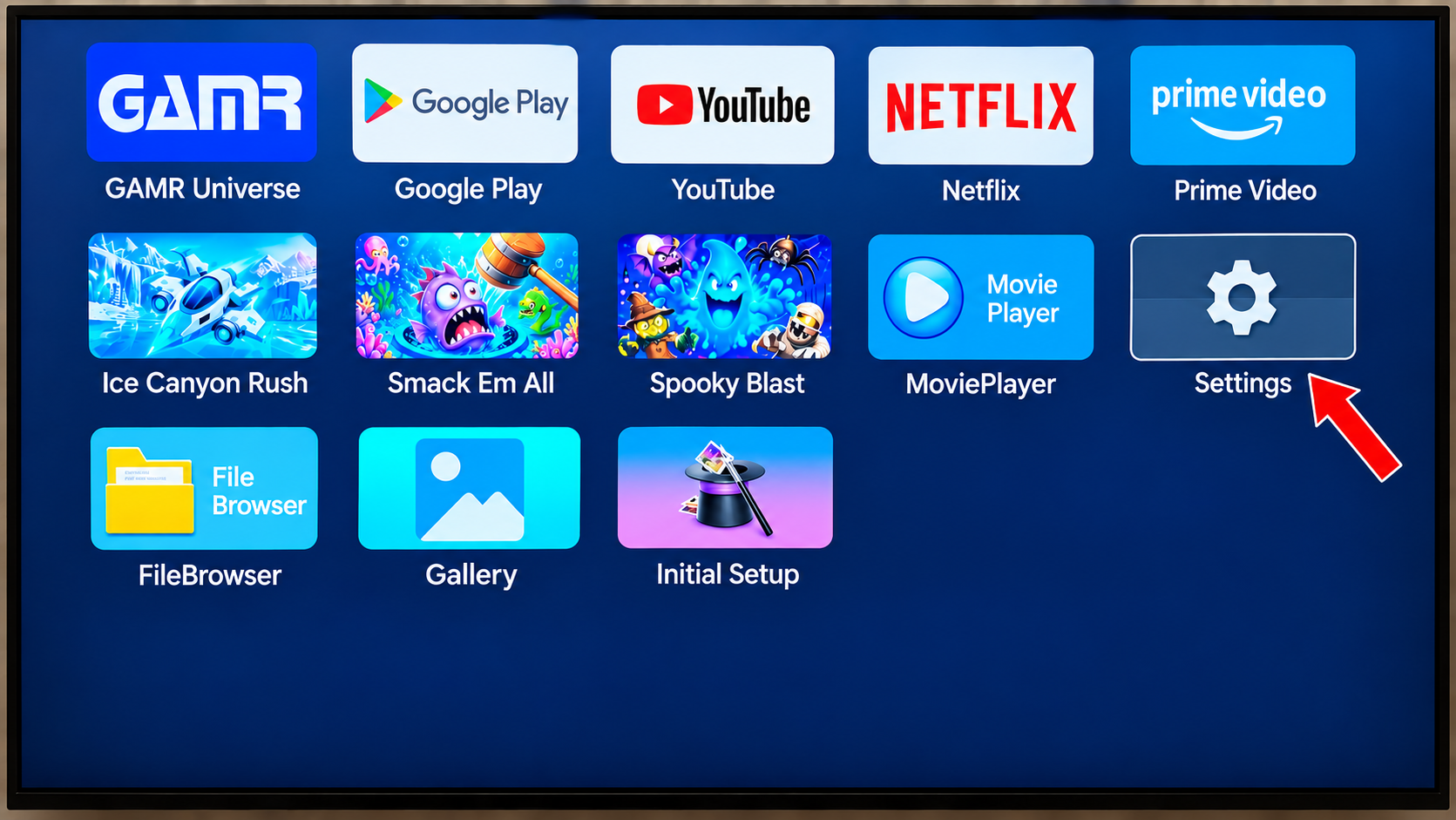
- Using your GAMR TV remote, navigate to the Settings icon.
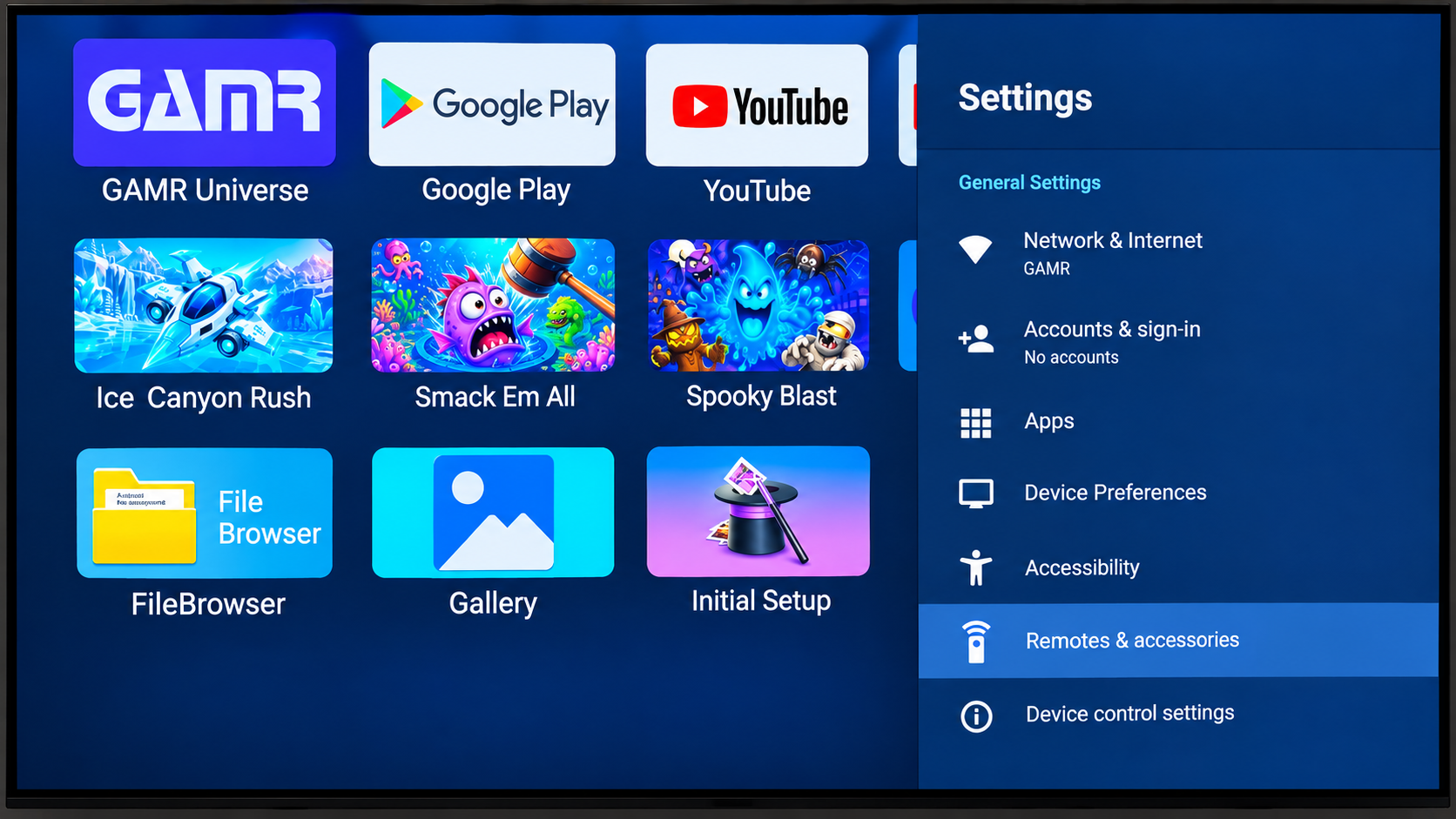
- Select Remotes & accessories.
- Turn on your GAMR Play Pad and confirm that the GAMR "G" logo is blinking.
- Select Add accessory.
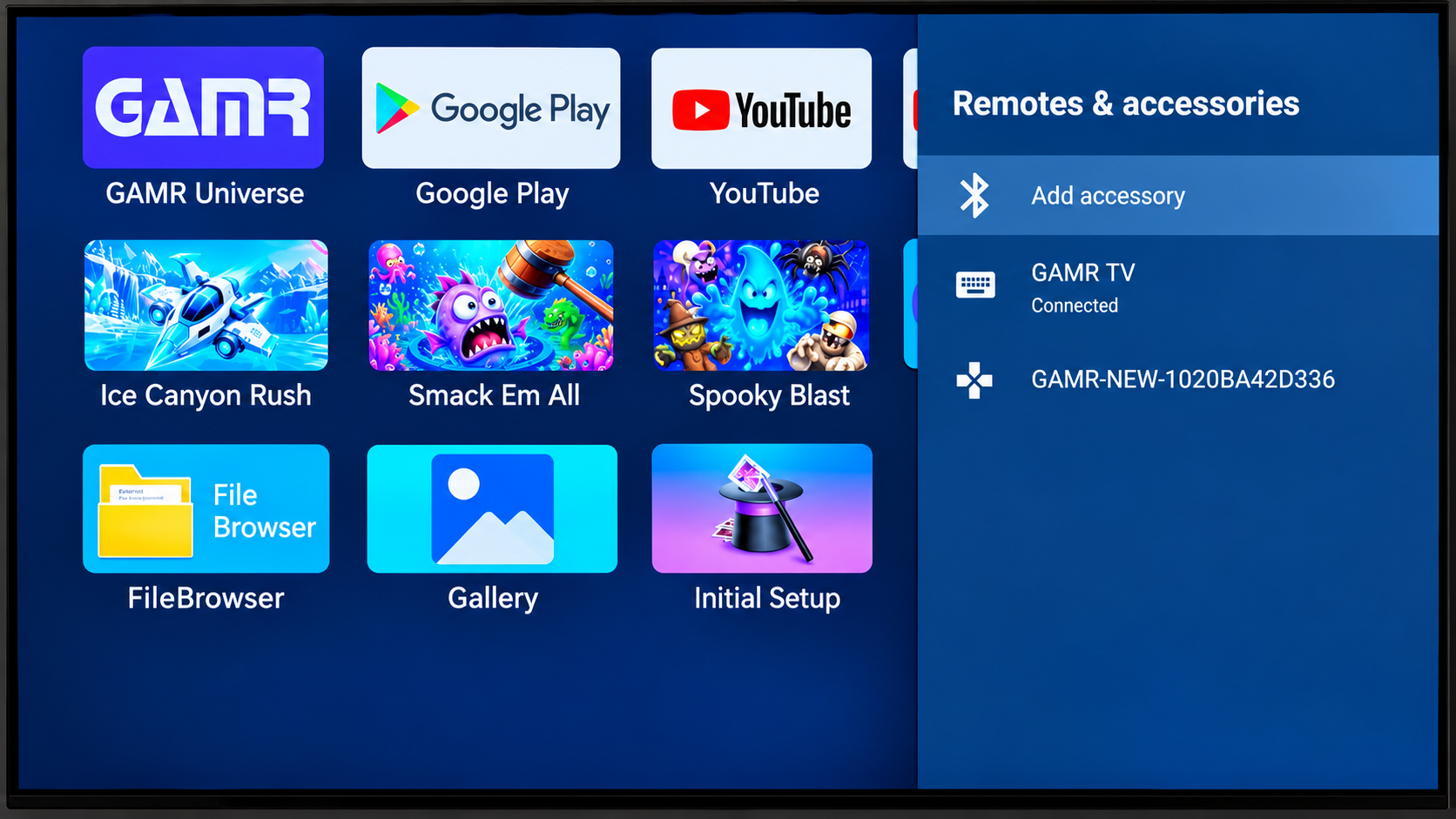
- Look for GAMR<mac address> in the list.
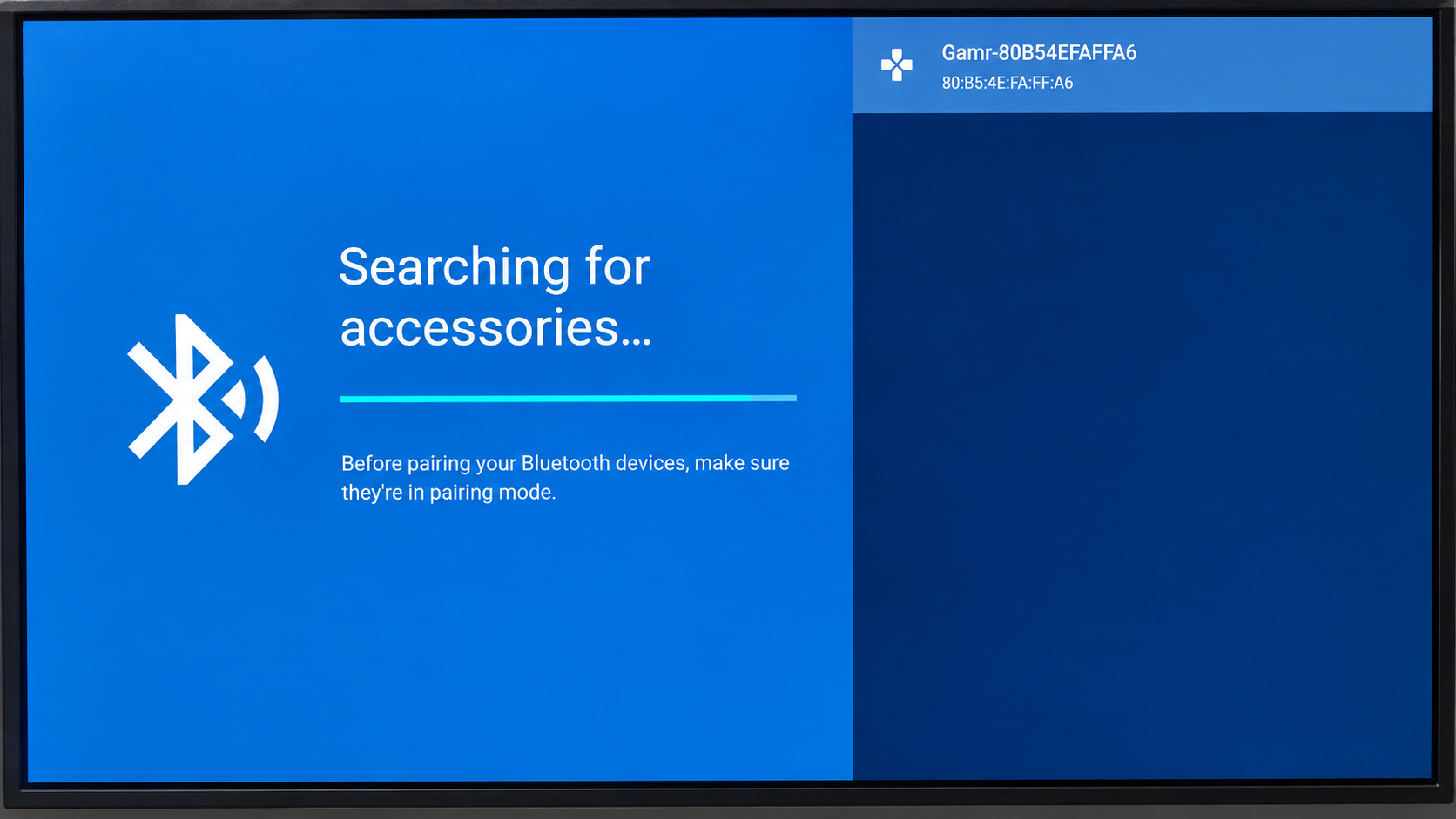
- Select GAMR<mac address> and wait a few seconds while it shows Pairing.
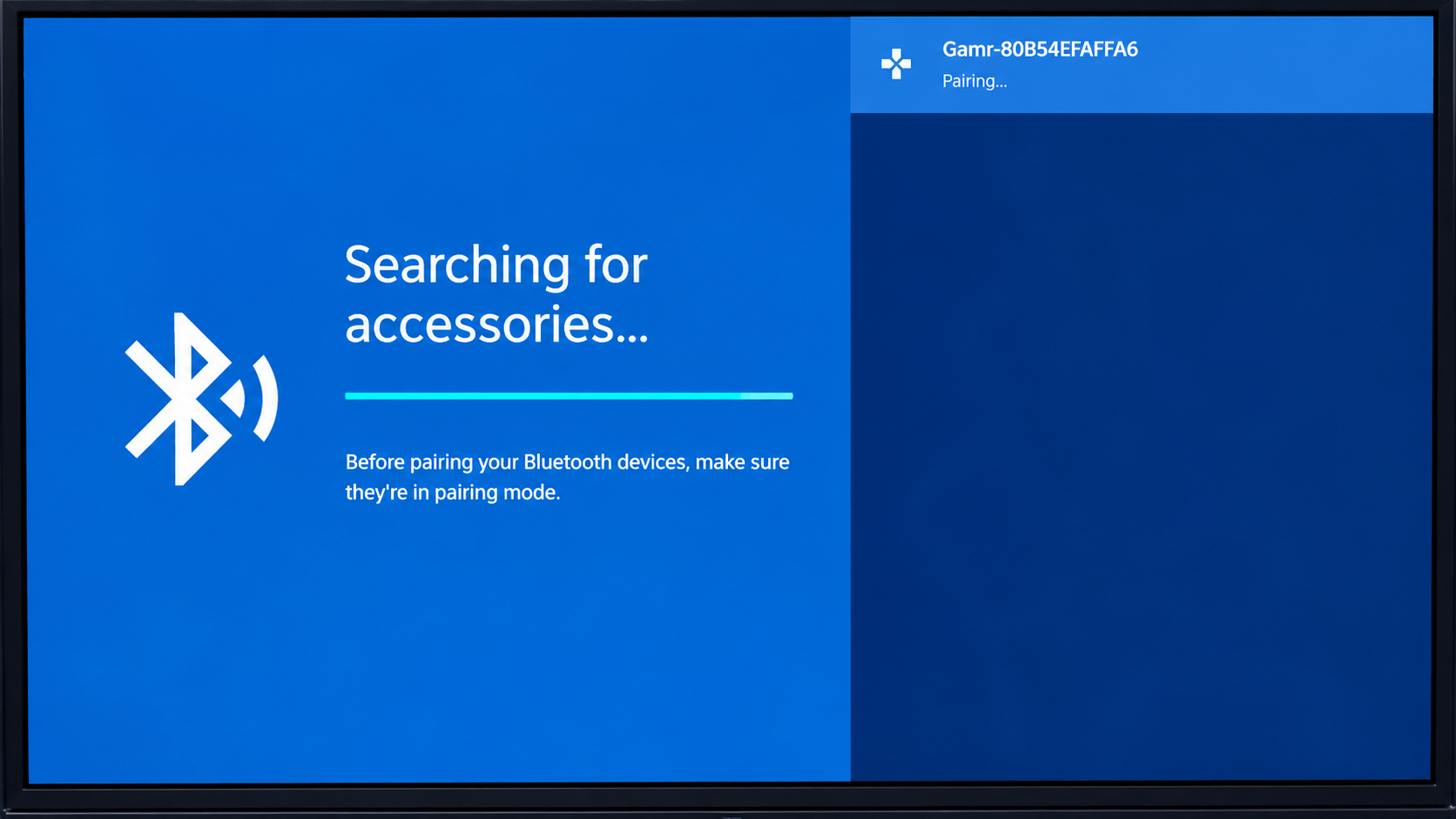
Step 3: Confirm the connection
- GAMR appears under Remotes & accessories with the status Connected.
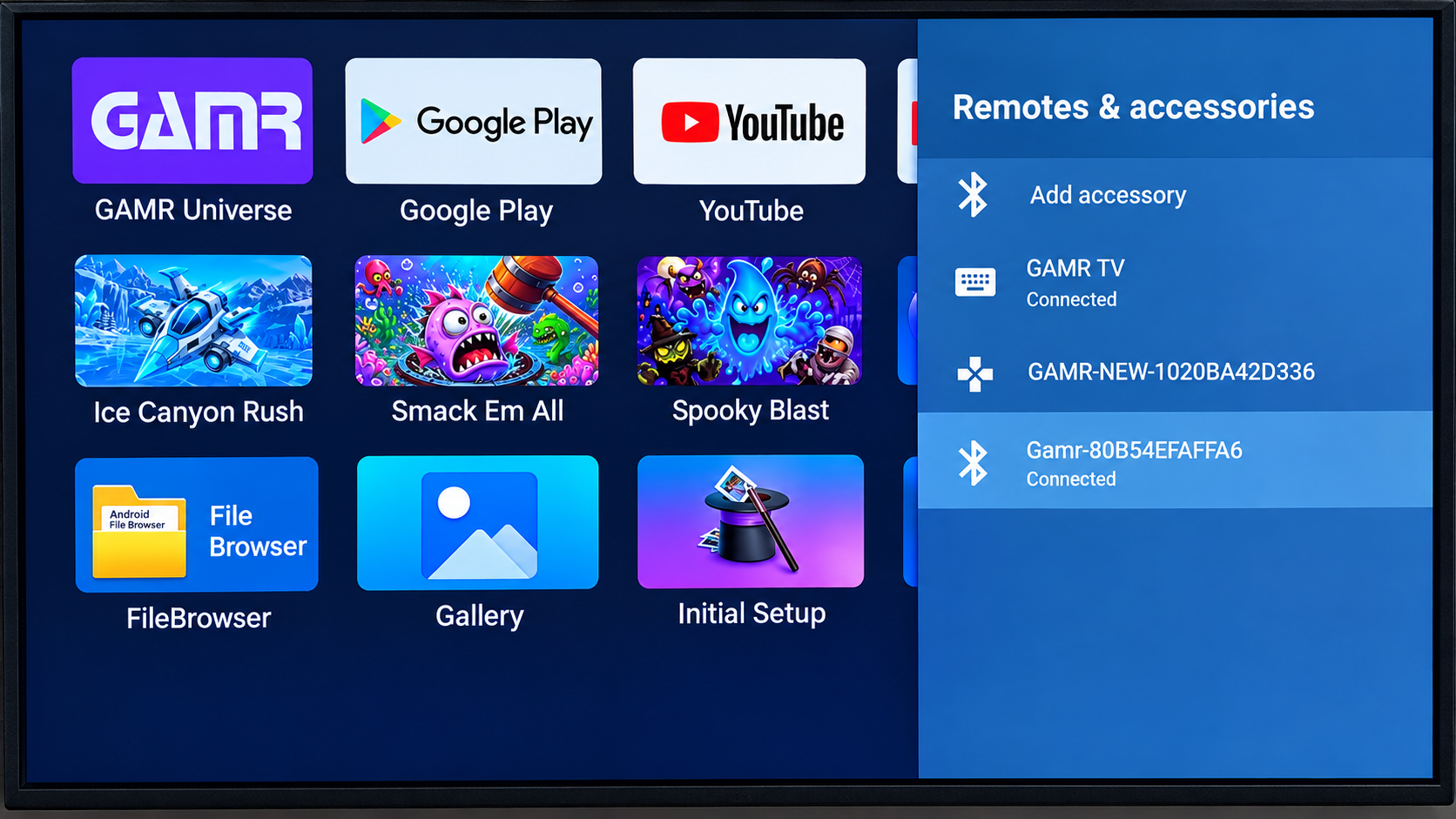
- The blinking GAMR logo on your Play Pad turns into a steady glow, confirming a successful connection.
Start Playing
Return to the GAMR TV Box home screen.
Launch GAMR Universe App or explore other controller-supported games and start playing with your GAMR Play Pad.
Was this article helpful?
That’s Great!
Thank you for your feedback
Sorry! We couldn't be helpful
Thank you for your feedback
Feedback sent
We appreciate your effort and will try to fix the article