Step 1: Open Bluetooth Settings
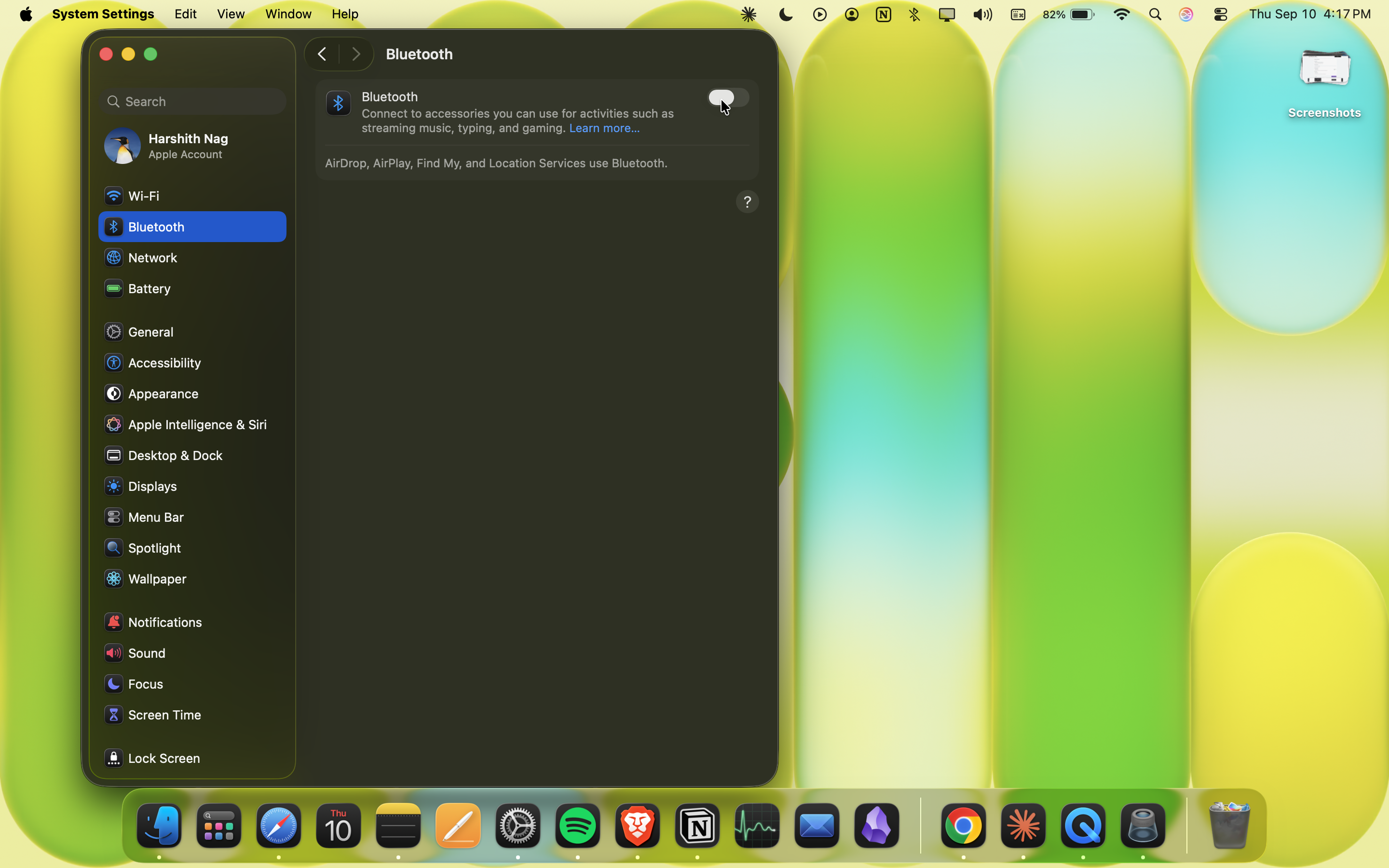
- Open System Settings
- Select Bluetooth
- Toggle Bluetooth On
Step 2: Pair your GAMR Play Pad
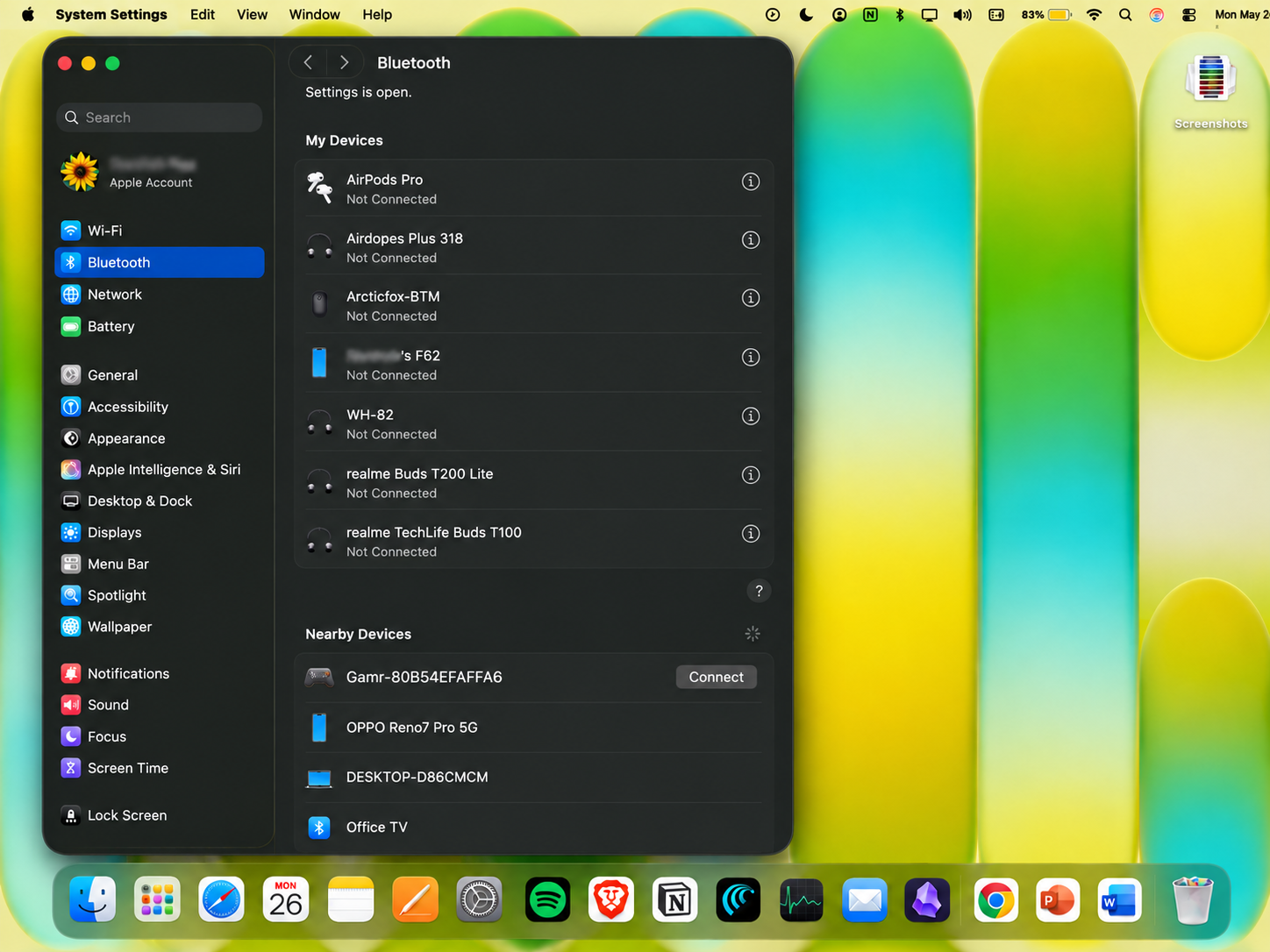
- Confirm the "G" logo is blinking on your GAMR Play Pad.
- Select GAMR<mac address>
- Click Connect
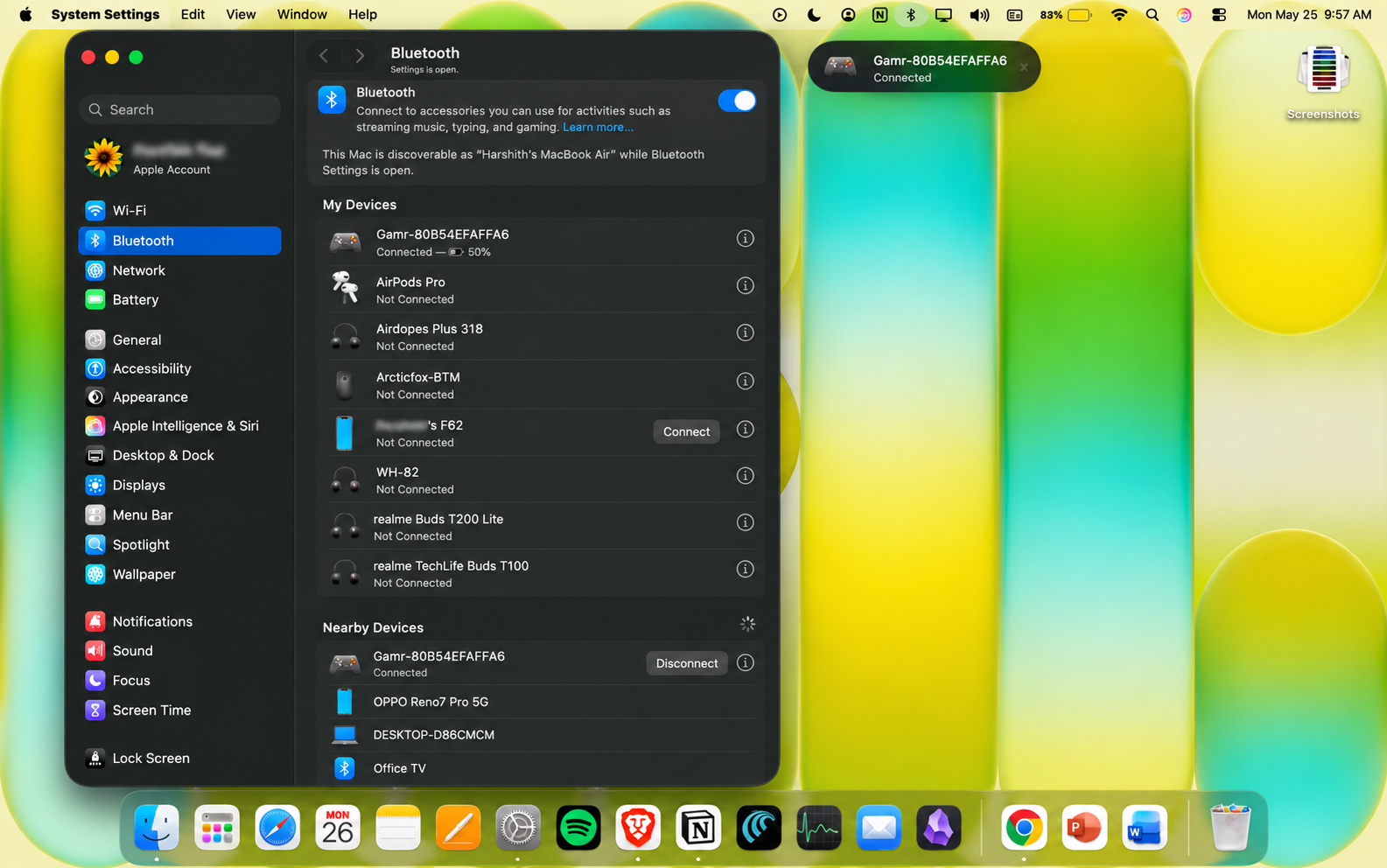
- Successful connection
Start playing
Launch Apple Arcade or explore other controller-supported games and start playing with your GAMR Play Pad.
Prefer a Video Guide?
Follow the video below for a step-by-step demonstration of how to connect your GAMR Play Pad to an Macbook over Bluetooth.
Watch the video:
Was this article helpful?
That’s Great!
Thank you for your feedback
Sorry! We couldn't be helpful
Thank you for your feedback
Feedback sent
We appreciate your effort and will try to fix the article