Step 1: Turn on your Play Pad
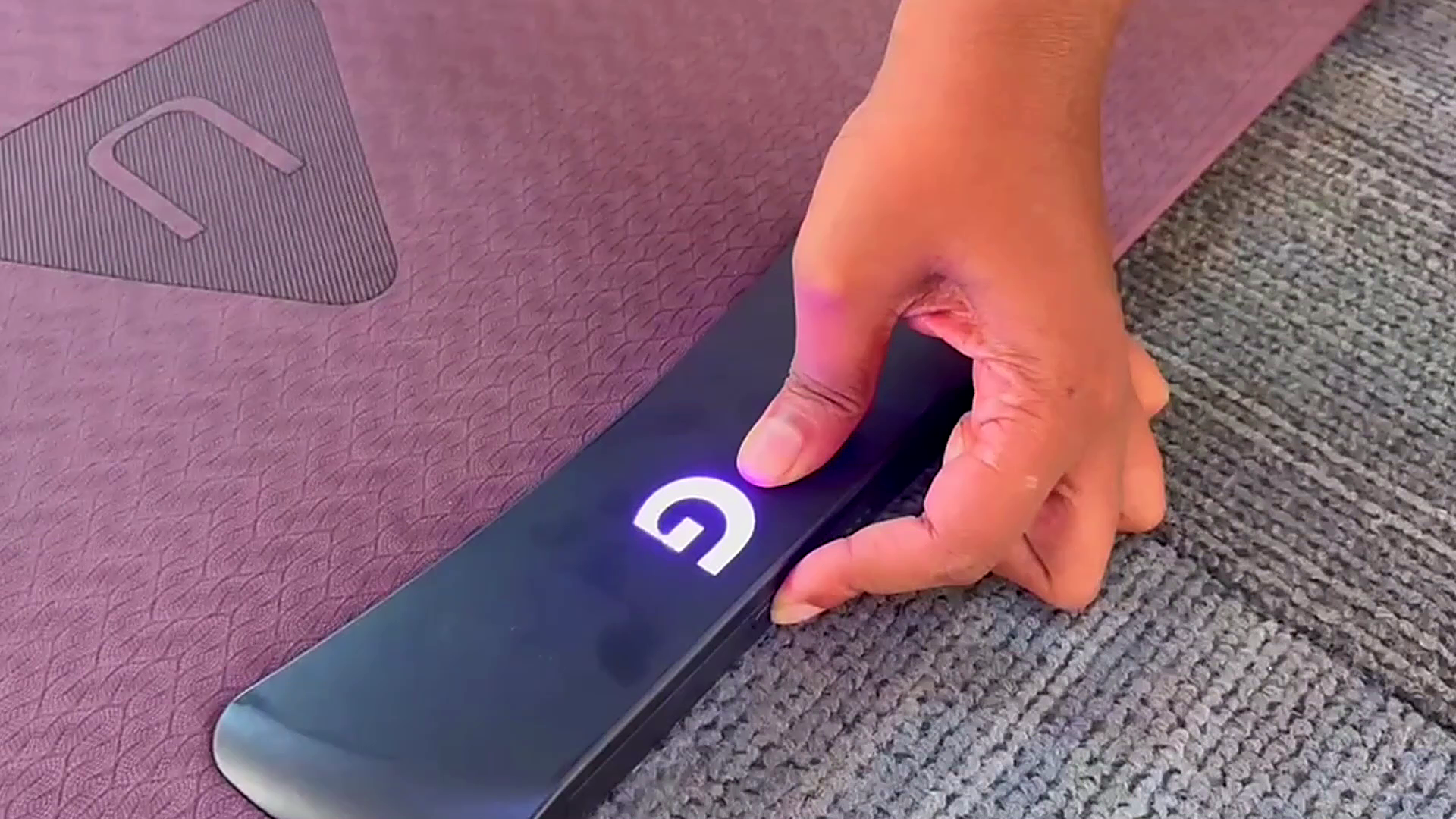
- Press and hold the Power button on the headboard of your GAMR Play Pad.
- Confirm that the GAMR "G" logo is Blinking.
Step 2: Pair the Play Pad with your MacBook
- On your MacBook, open System Settings.
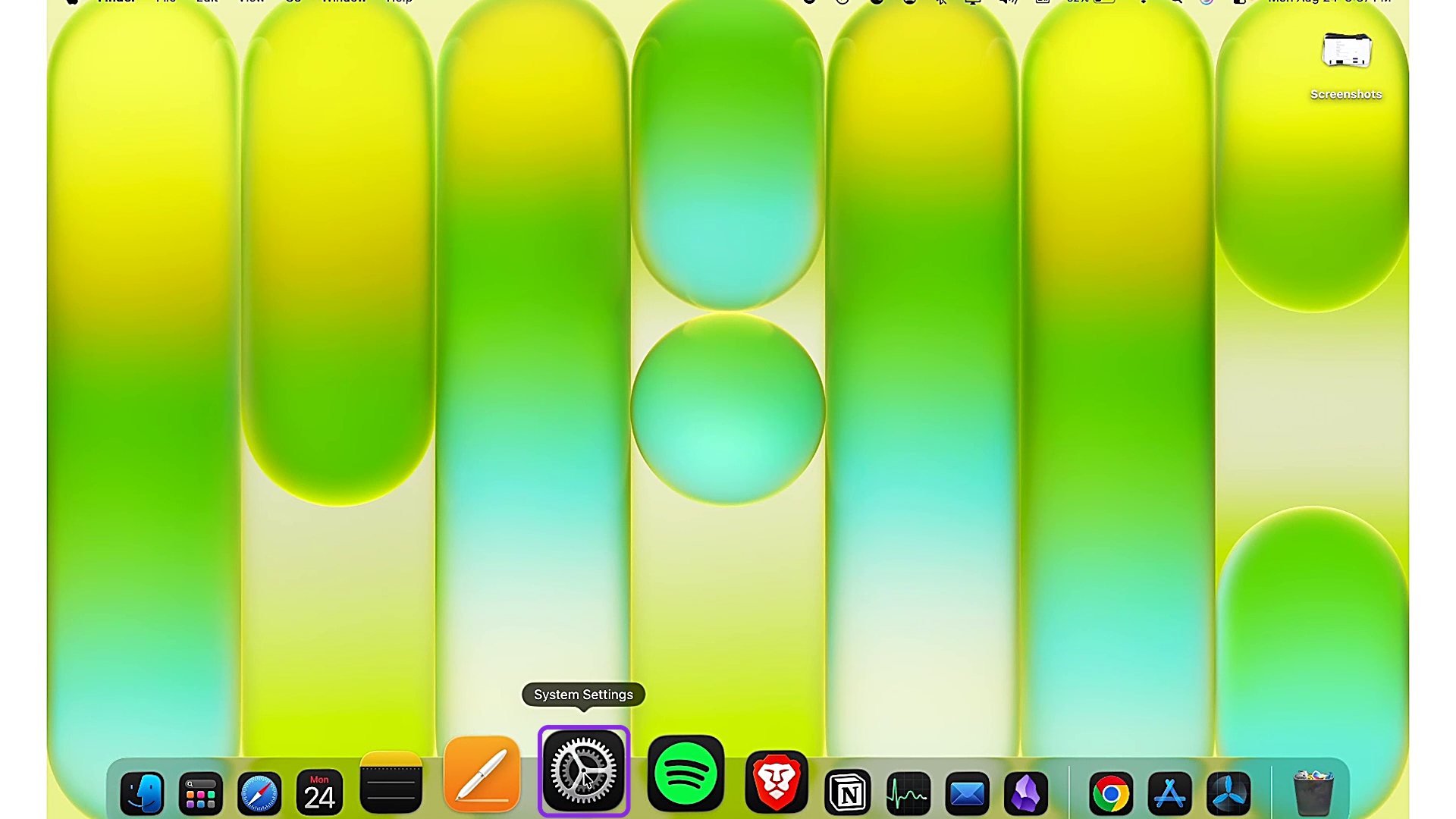
- Select Bluetooth.
- Turn Bluetooth on.
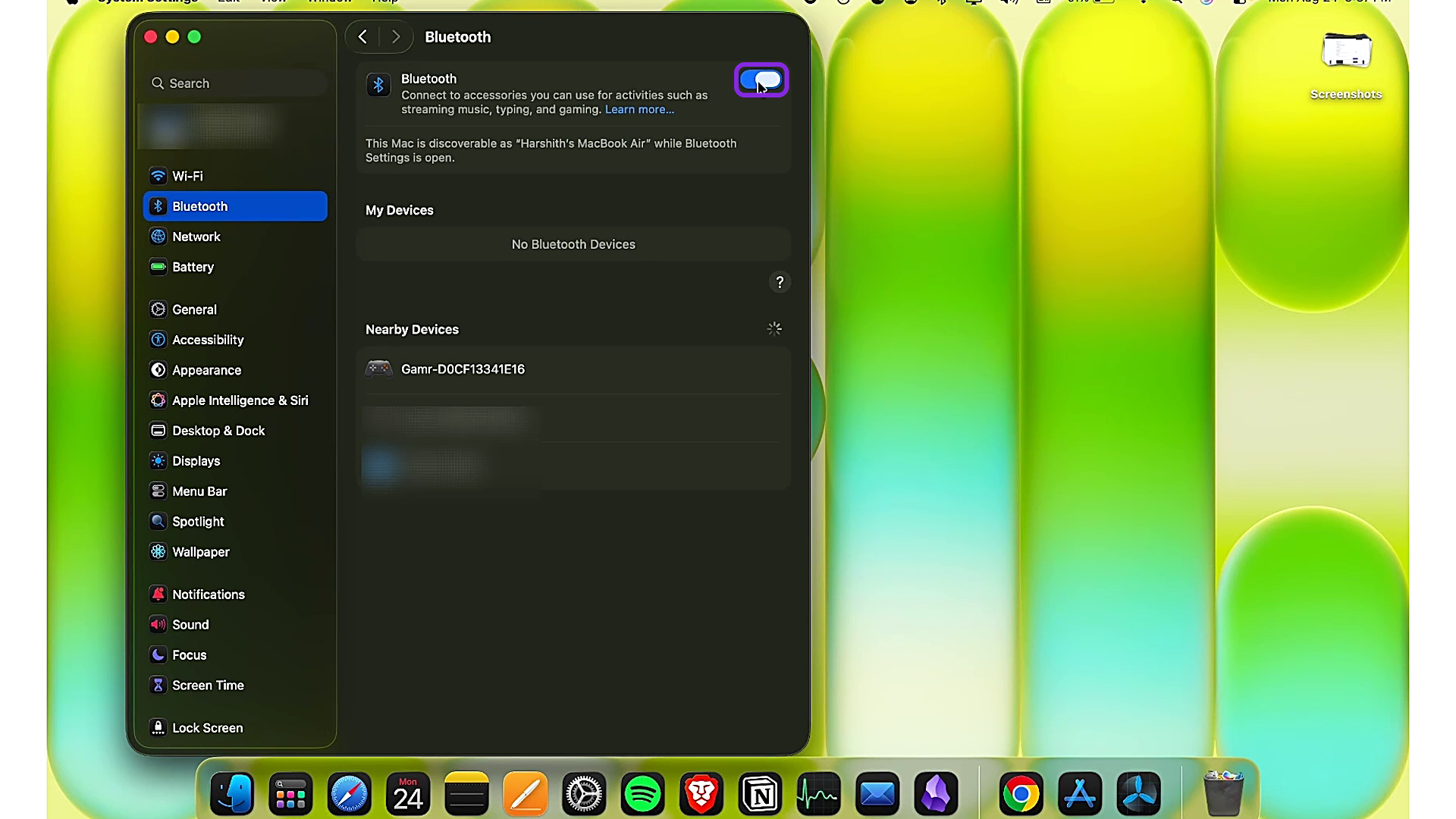
- Confirm that the GAMR "G" logo is blinking.
- Look for GAMR with its unique model number, Gamr<mac address>, under Nearby Devices.
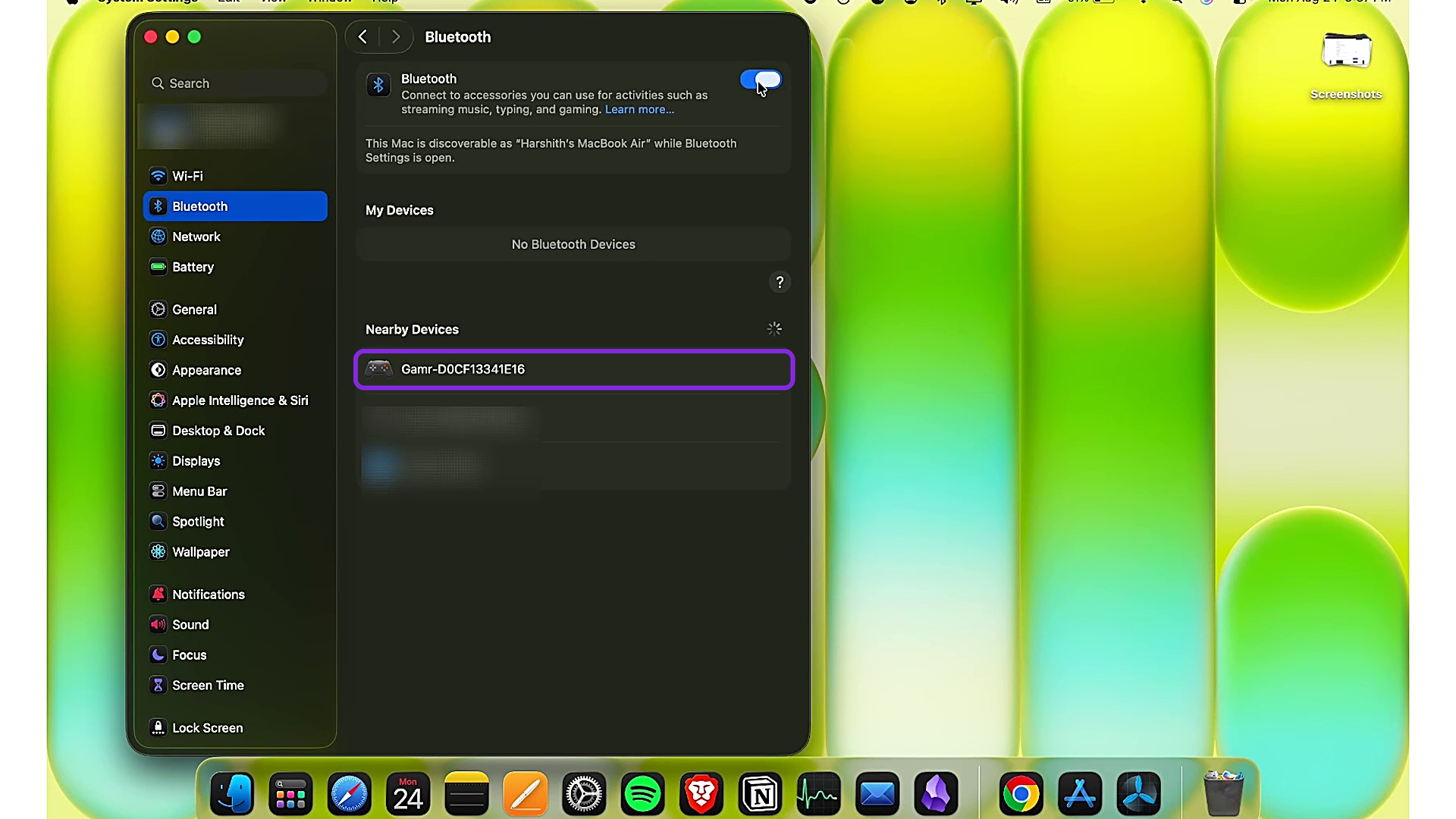
- Select Connect.
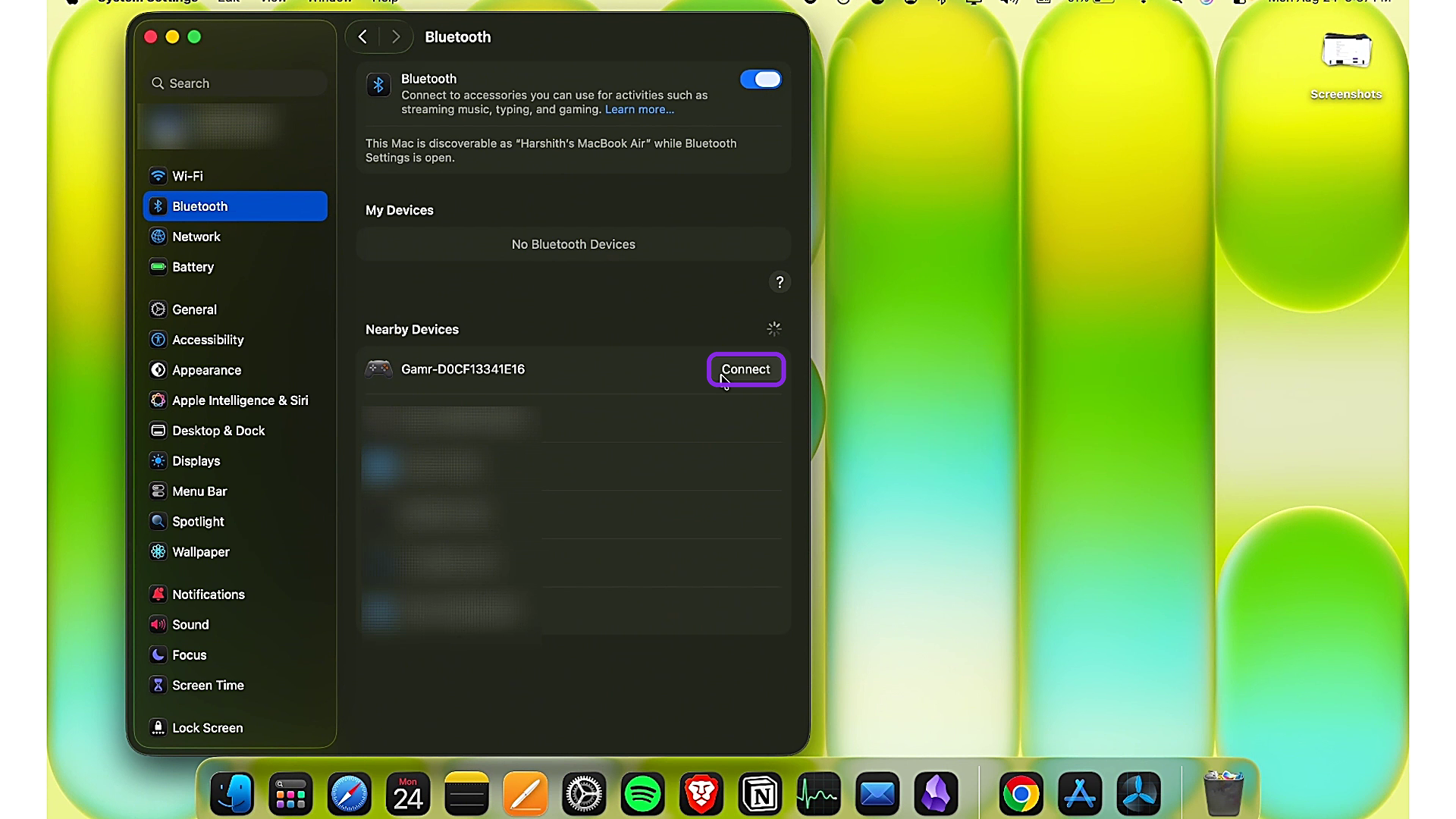
- Once it shows as connected, the pairing is successful.
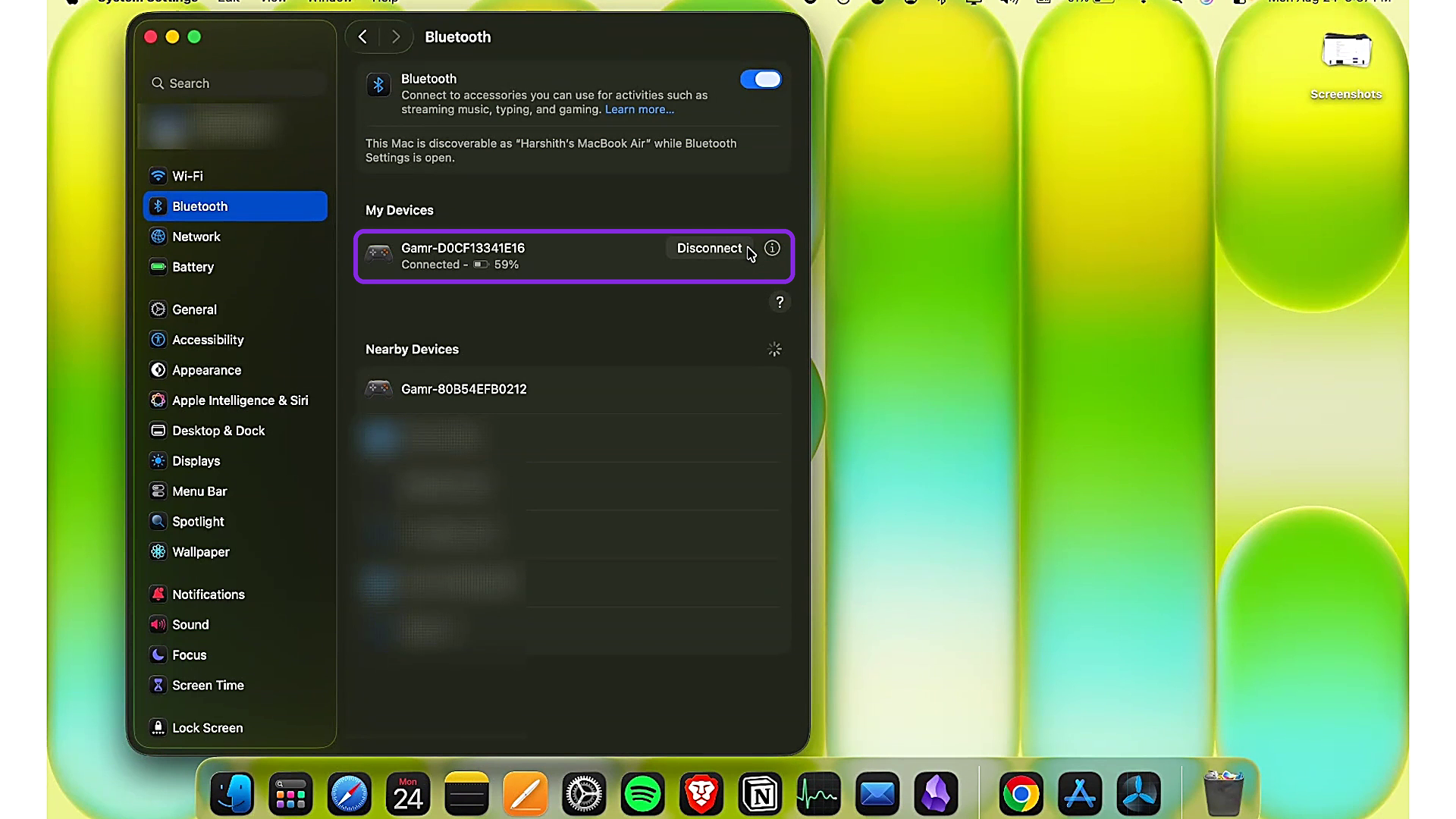
- The "G" logo glows steadily.
Step 3: Open ITGmania
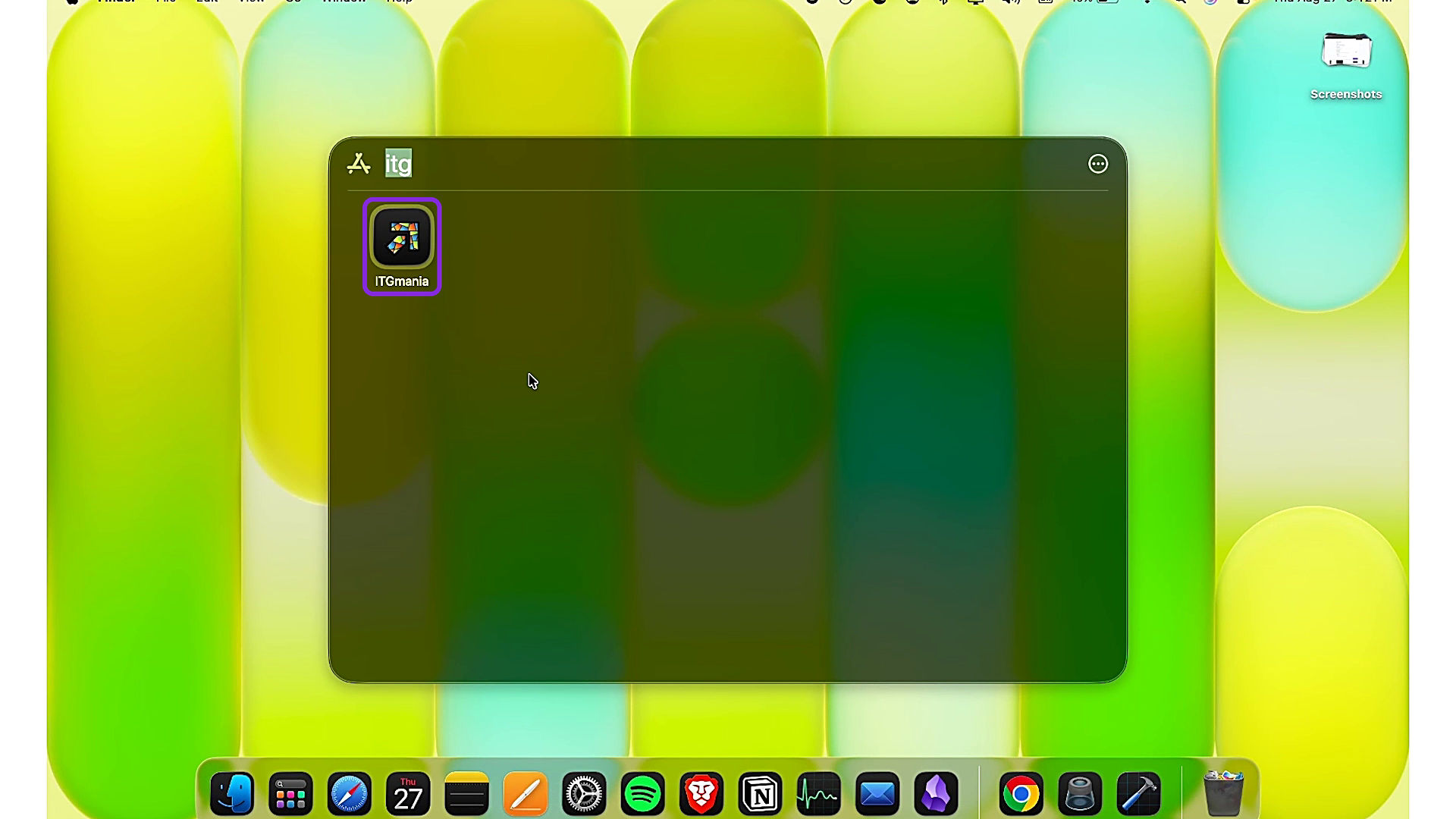
- Open ITGmania on your MacBook.
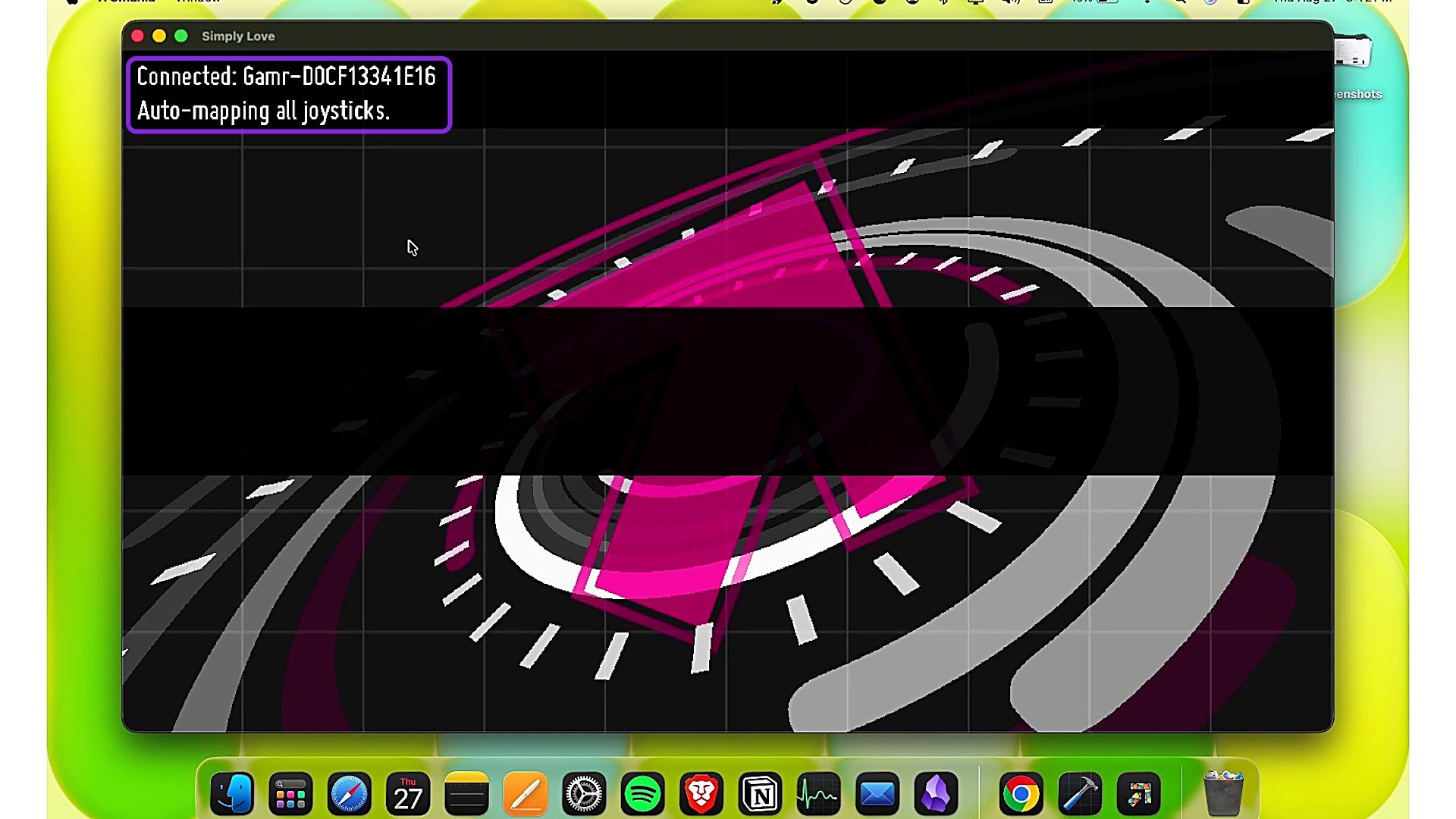
- On launch, ITGmania shows "Connected: Gamr<mac address> — Auto-mapping all joysticks."
Step 4: Open the key mapping settings
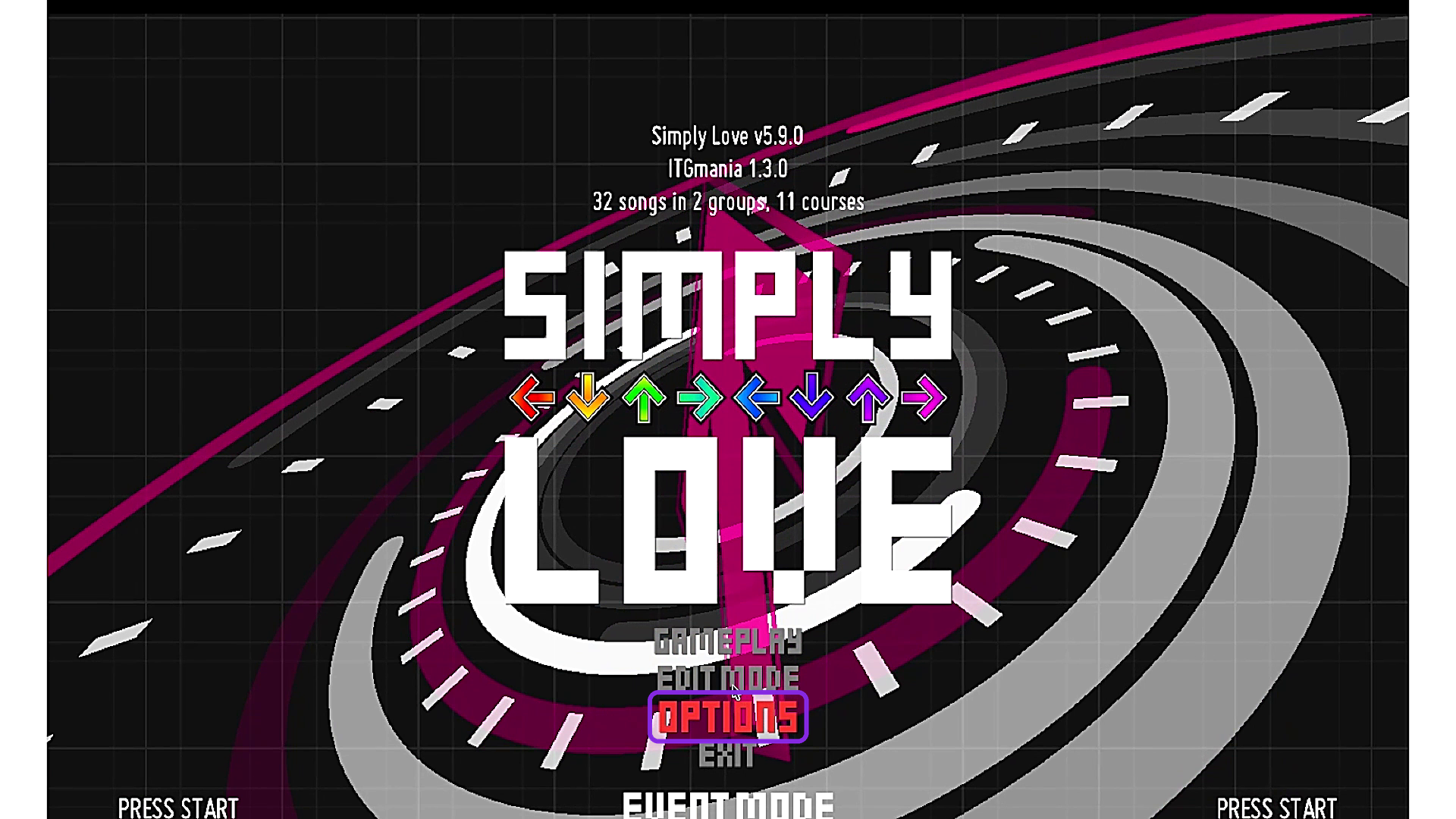
- On the title screen, select Options.
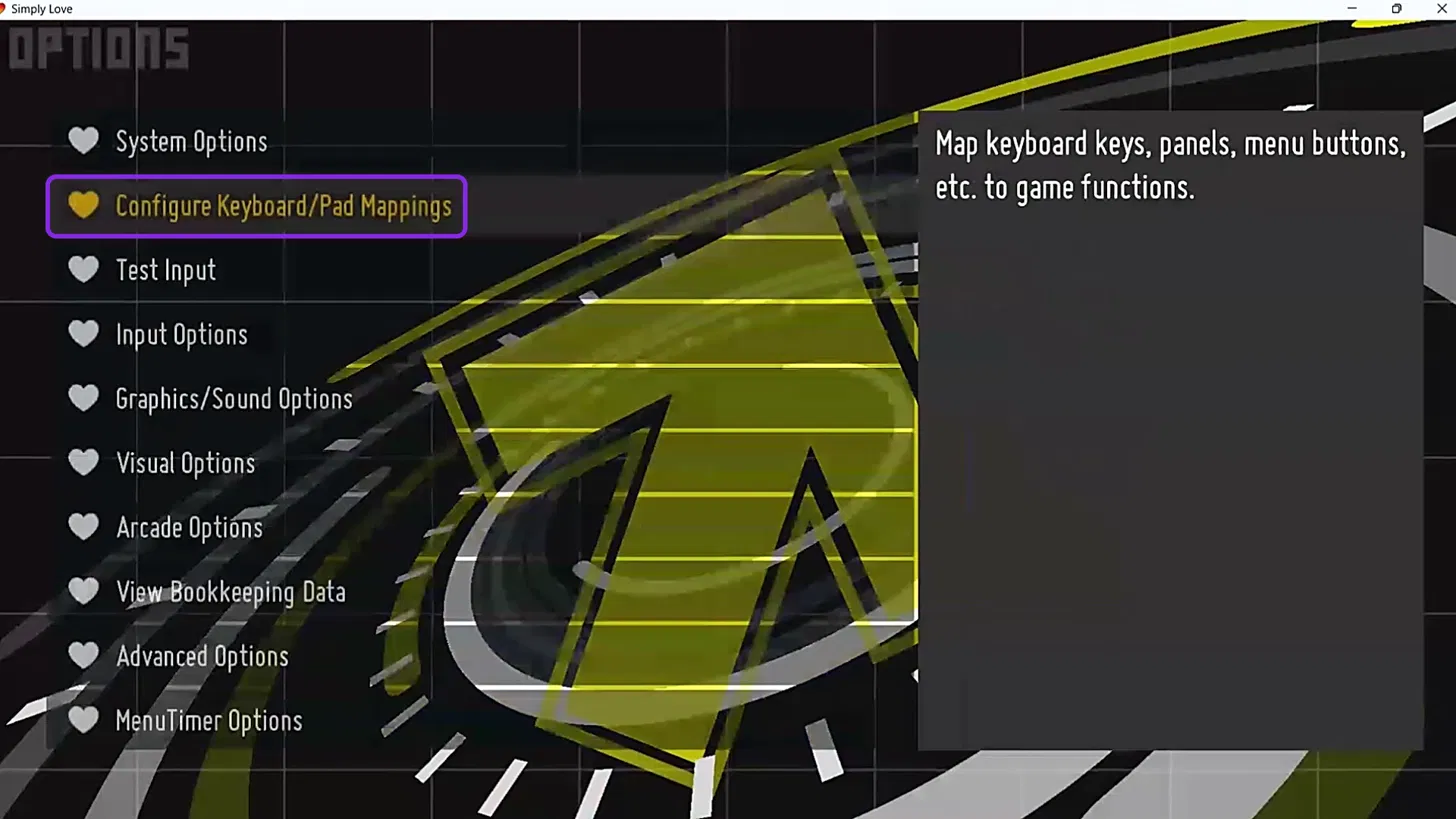
- Select Configure Keyboard/Pad Mappings.
Step 5: Map the Play Pad keys
- Make sure the gamepad is visible in the top box. If it isn't, restart the game.
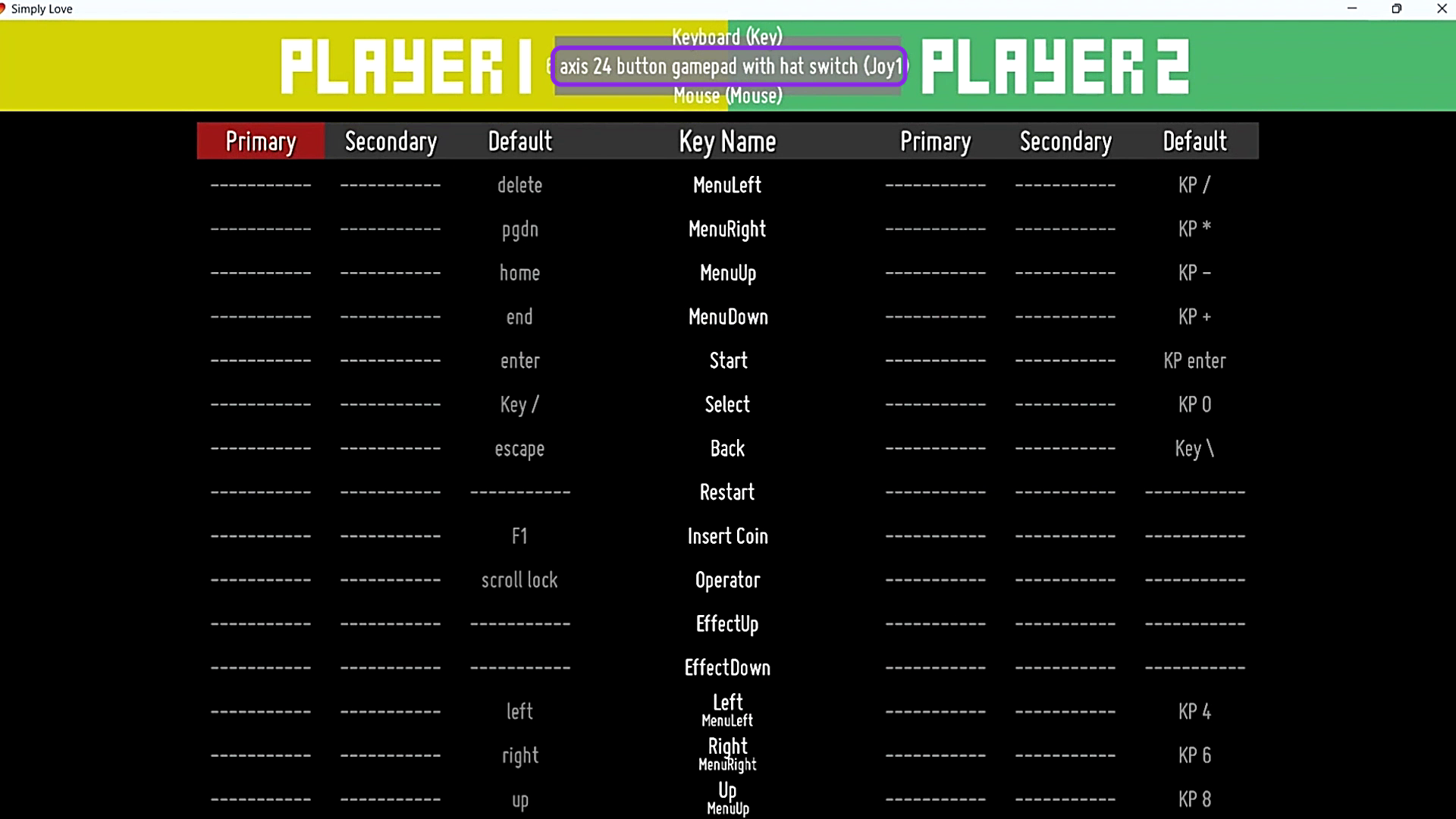
- Scroll down to Left.
- Press Enter on your keyboard.
- Tap the 'L' key on your Play Pad.
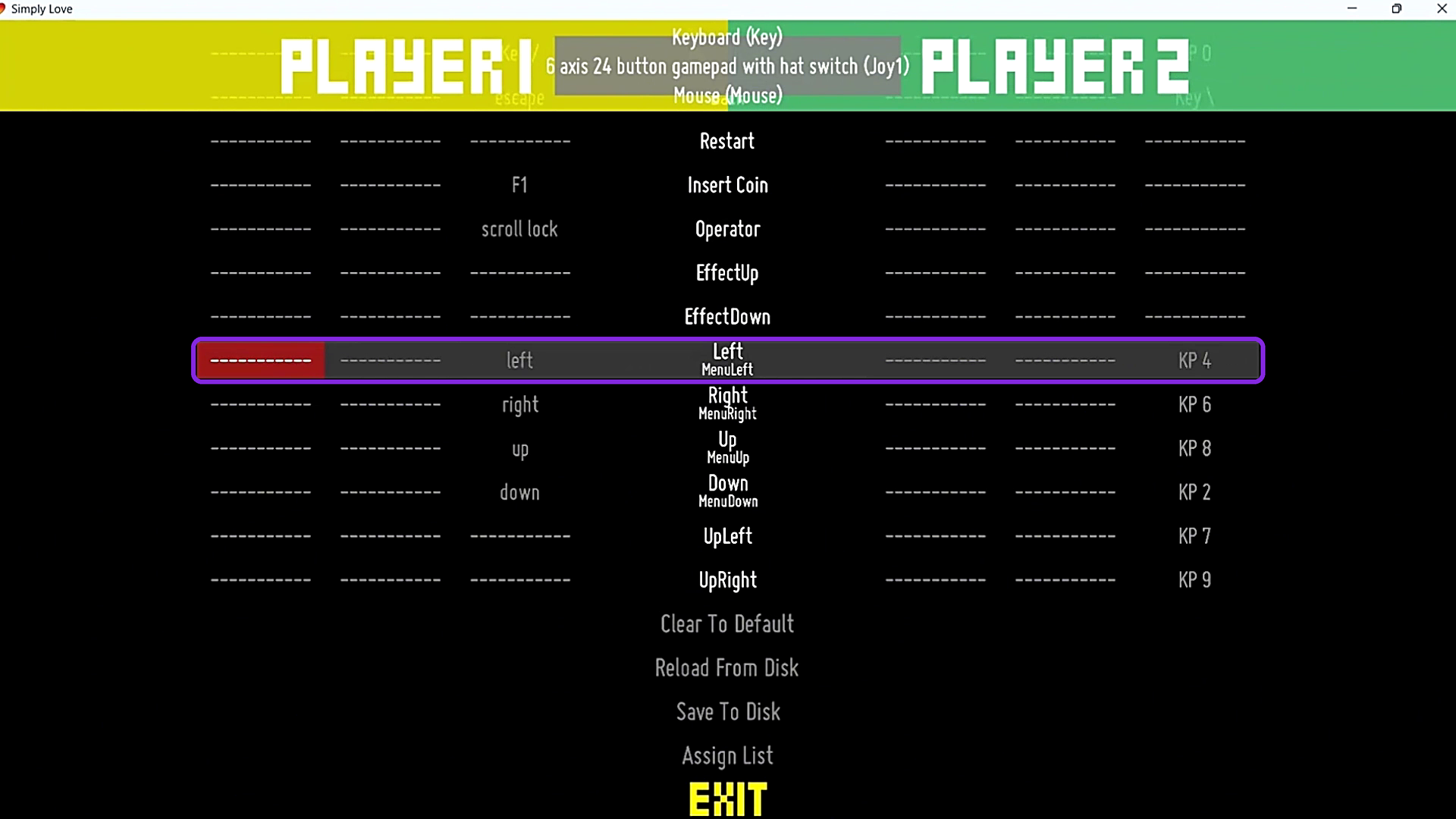
- Ensure the key got selected — Joy1 H-Left appears beside Left.
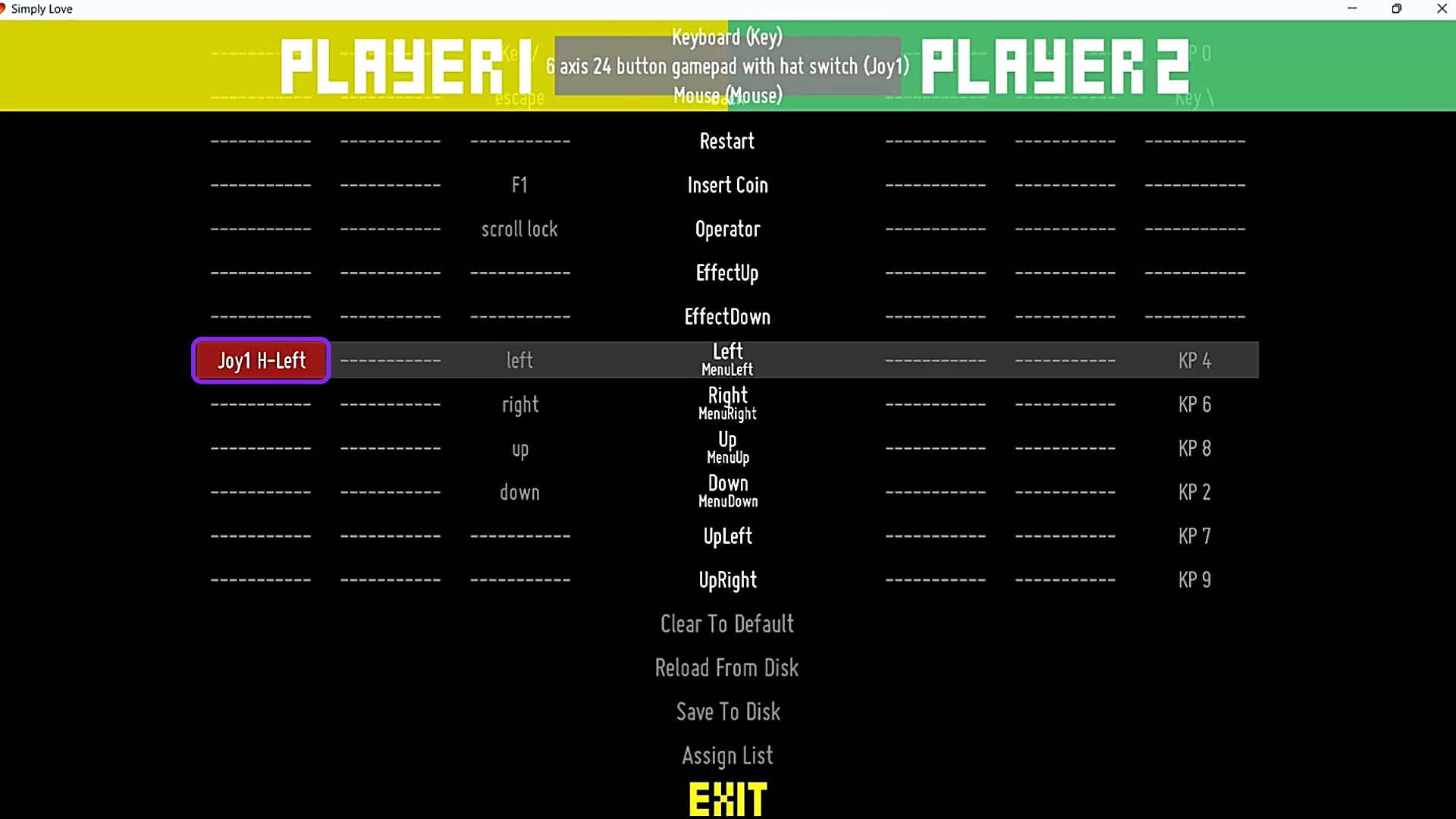
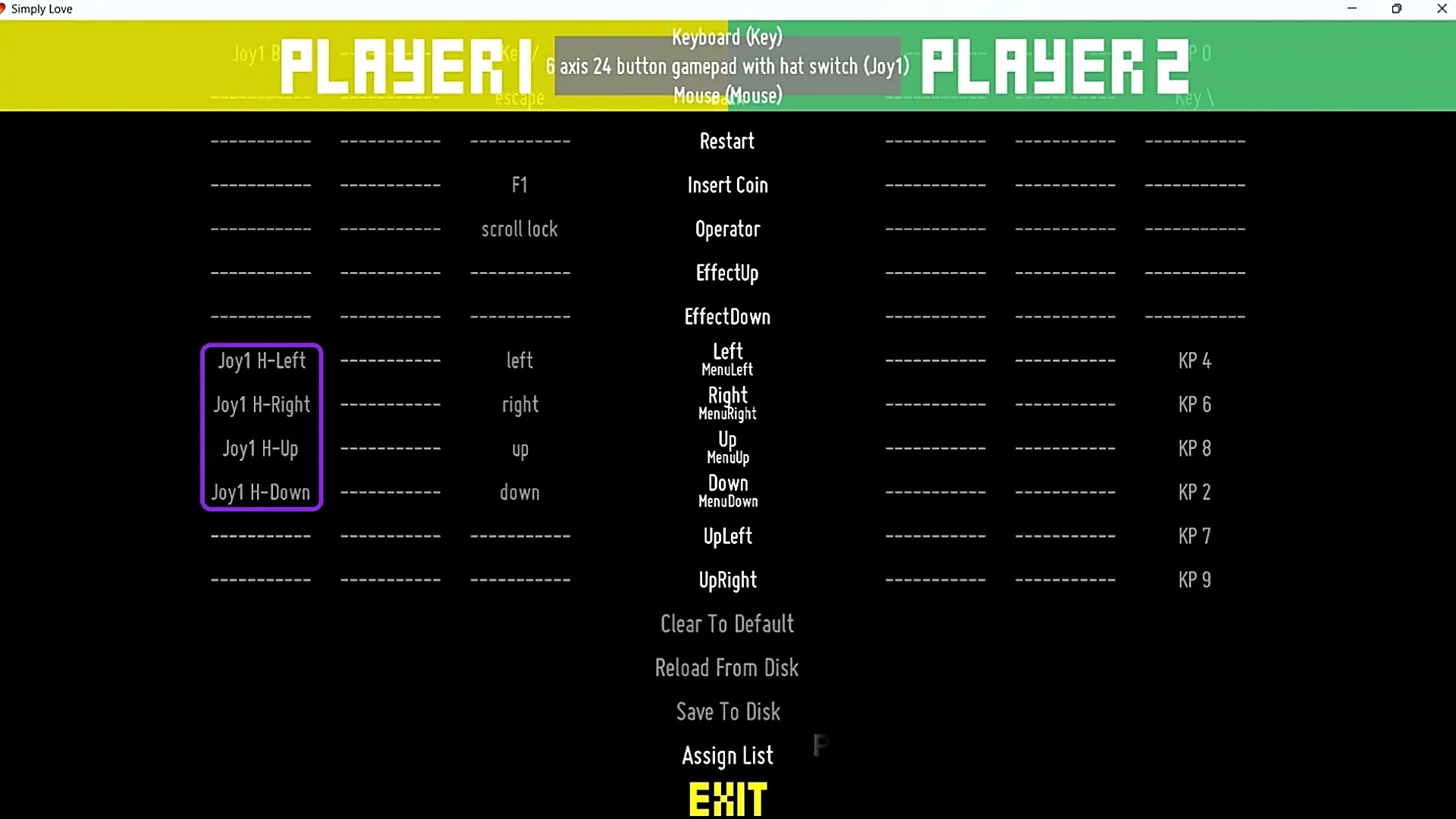
- Next, scroll to Right, press Enter on your keyboard and tap the 'R' key on your Play Pad.
- Follow the same steps for Up and Down.
Step 6: Save and start playing
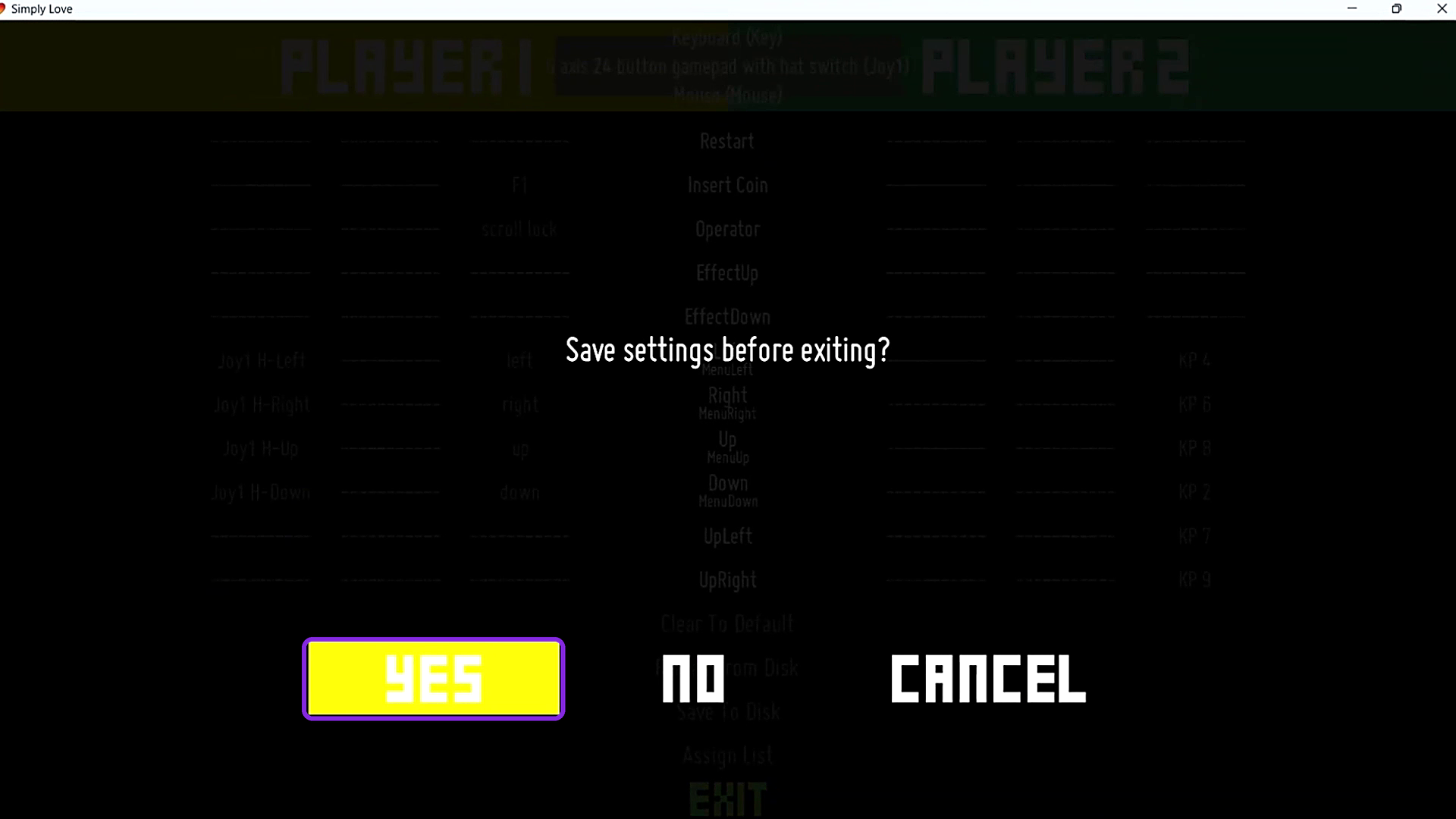
- Press Exit and save.
- Select Yes when asked "Save settings before exiting?".
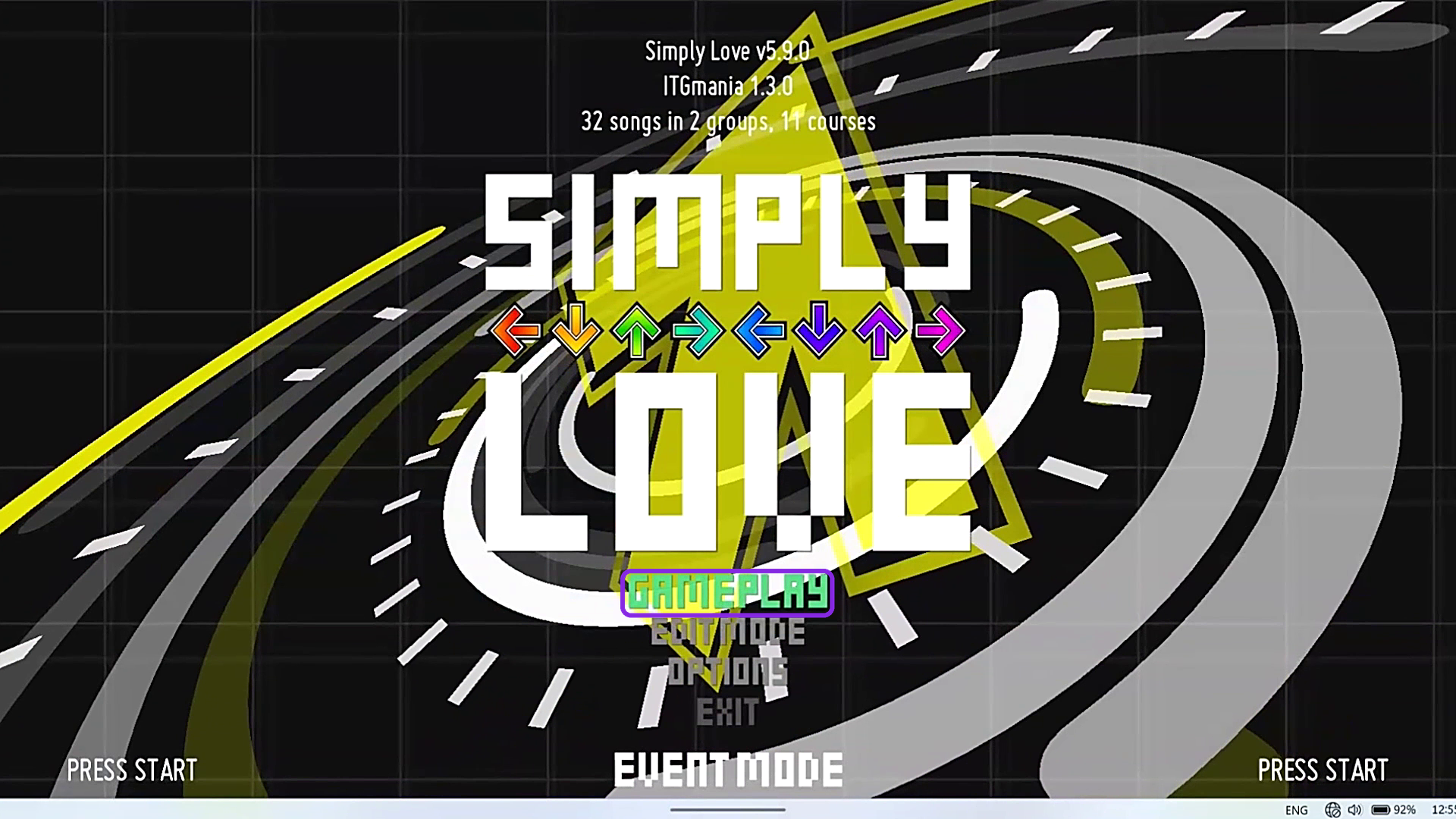
- On the title screen, select Gameplay and step into the action.
Was this article helpful?
That’s Great!
Thank you for your feedback
Sorry! We couldn't be helpful
Thank you for your feedback
Feedback sent
We appreciate your effort and will try to fix the article