If your GAMR Play Pad is connected to your Android TV with the cable but isn't responding.
Step 1: Make sure your Play Pad is in pairing mode
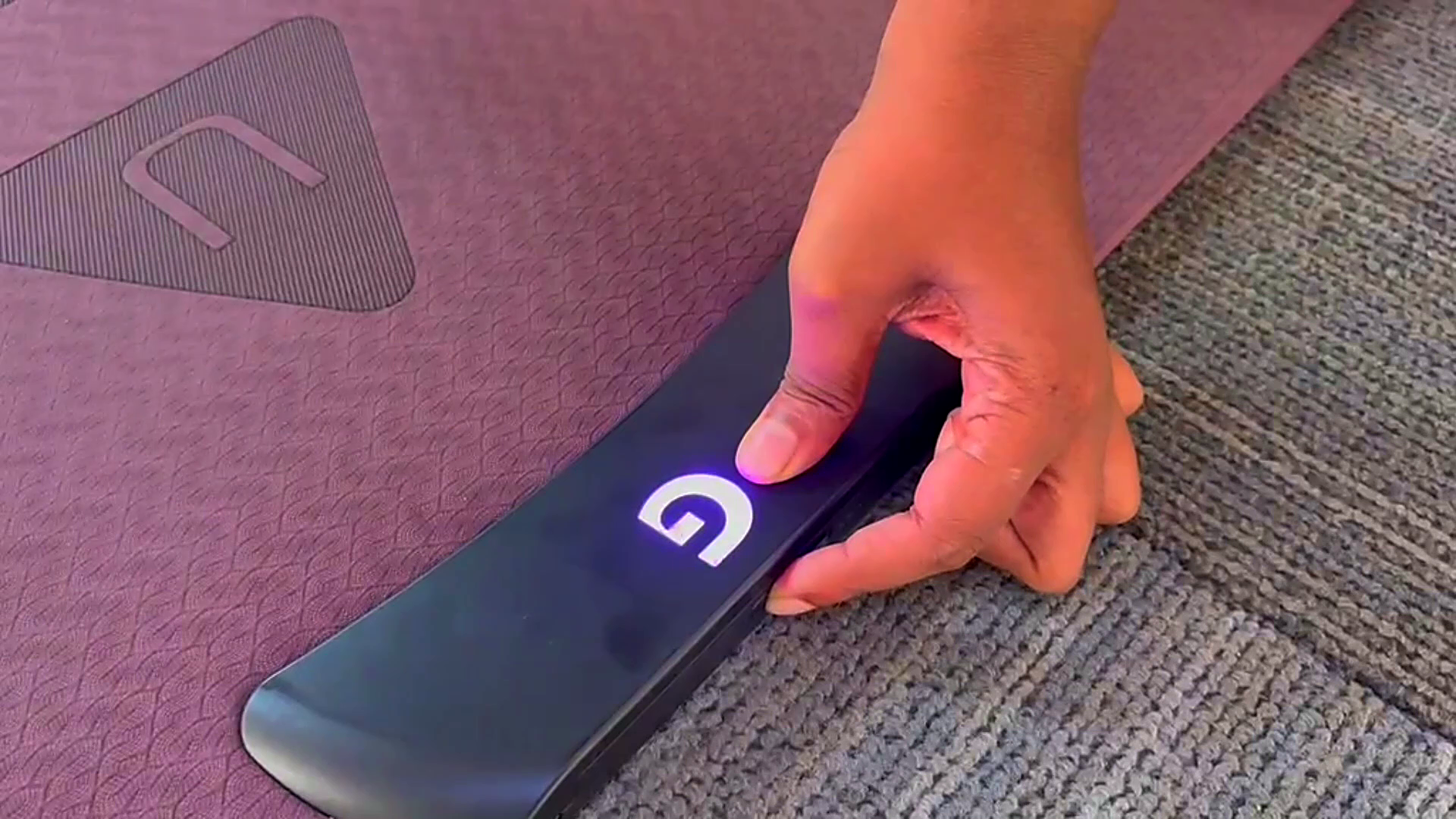
- Press and hold the Power button on the headboard of your GAMR Play Pad.
- Confirm that the GAMR "G" logo is blinking.
Step 2: Unplug and reconnect the USB-C cable
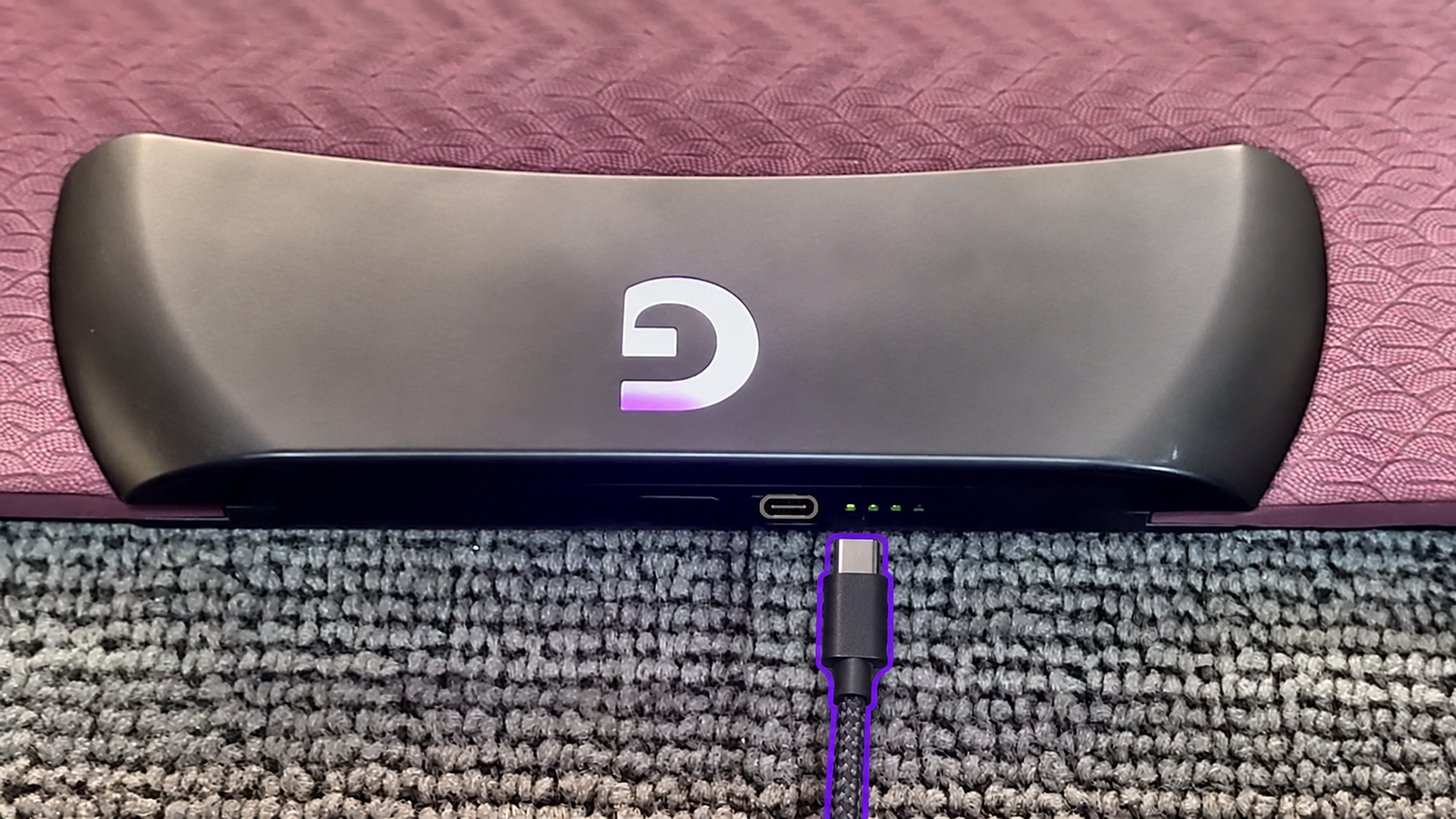
- Unplug the USB-C end from the Play Pad.
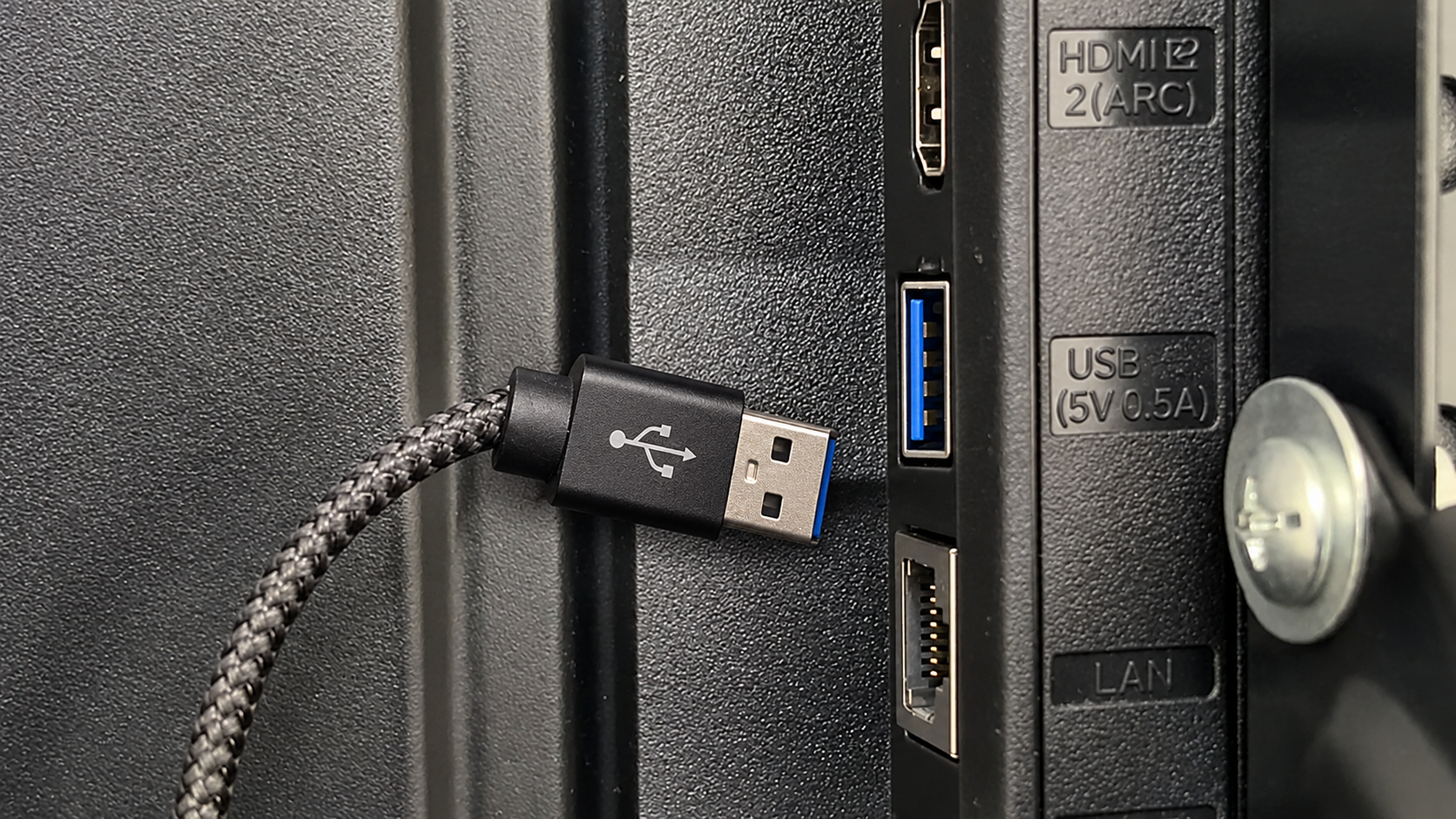
- Unplug the USB-A end from the Android TV.
Step 3: Restart your TV and try connecting again
- Restart your TV.
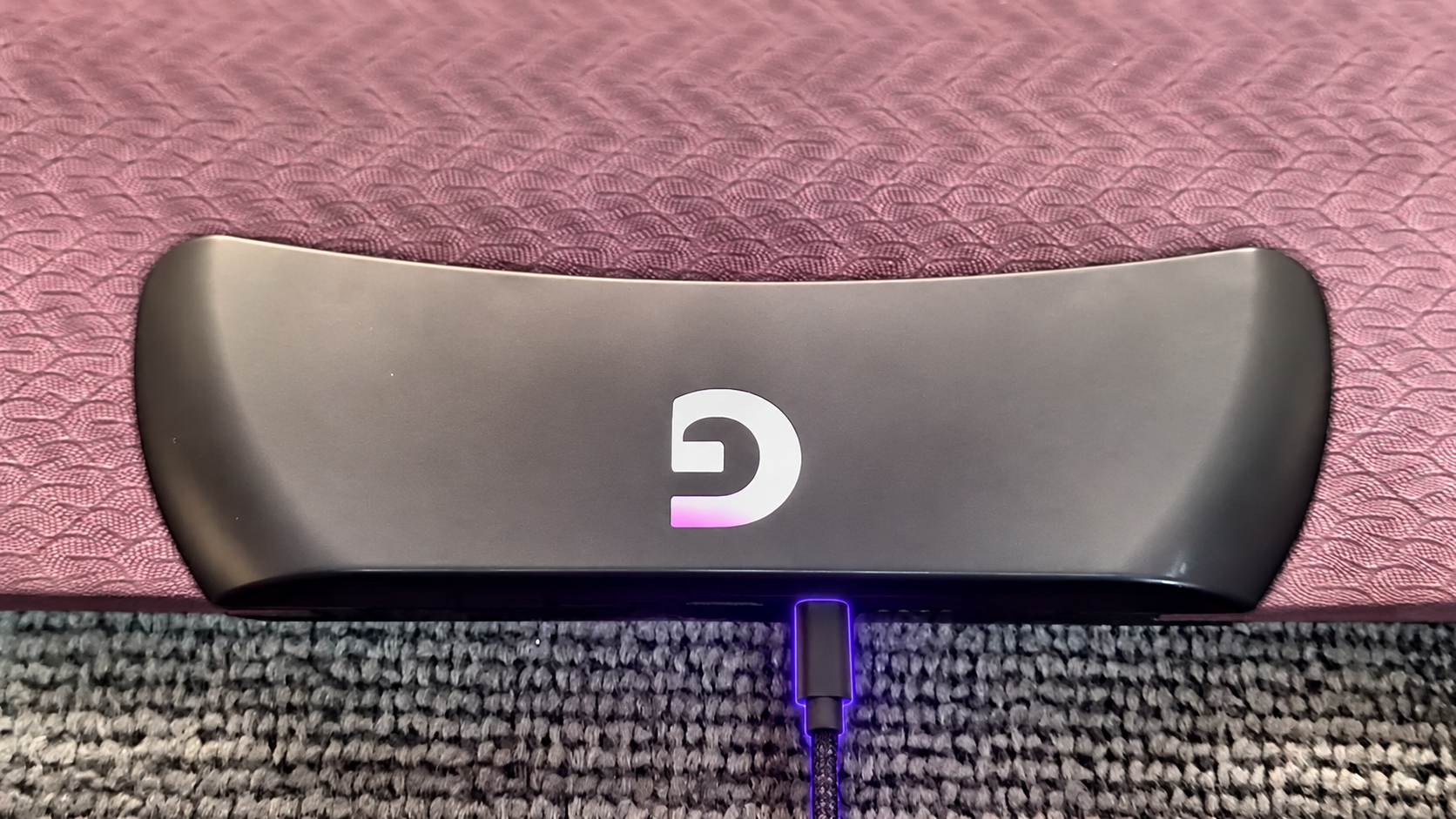
- Reconnect the USB-C end to your Play Pad.
- Reconnect USB-A end of the cable TV and try connecting again.
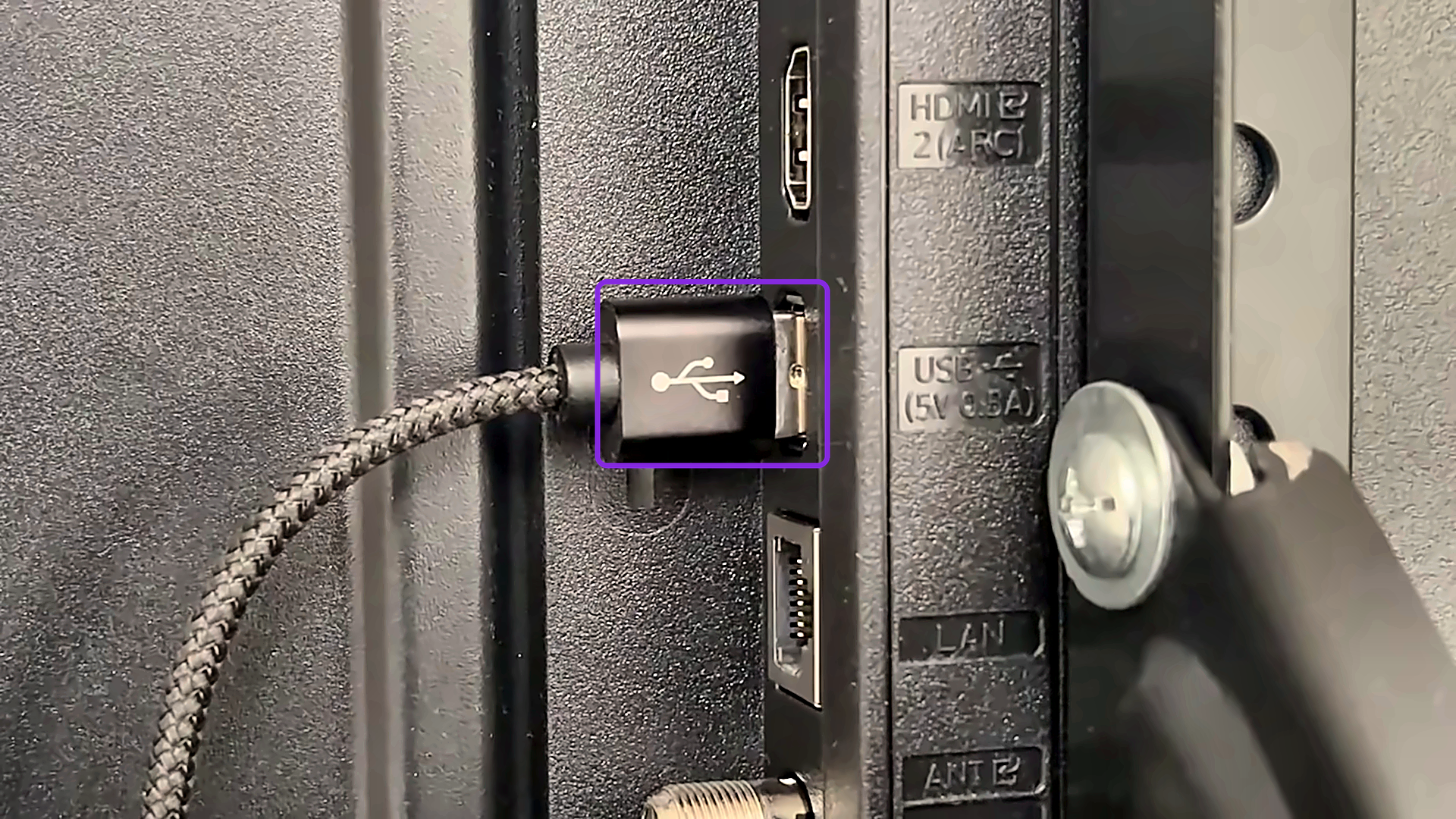
Step 4: Check that your Play Pad is responding
- Stomp on any area on the Play Pad.
- If the inputs are responding, you're all set.
Step 5: Open the GAMR Universe app
- Search for the GAMR Universe app on Google Play Store
- Select Play.
- Choose your game and you're ready to play.
Was this article helpful?
That’s Great!
Thank you for your feedback
Sorry! We couldn't be helpful
Thank you for your feedback
Feedback sent
We appreciate your effort and will try to fix the article