Turning on your GAMR Play Pad
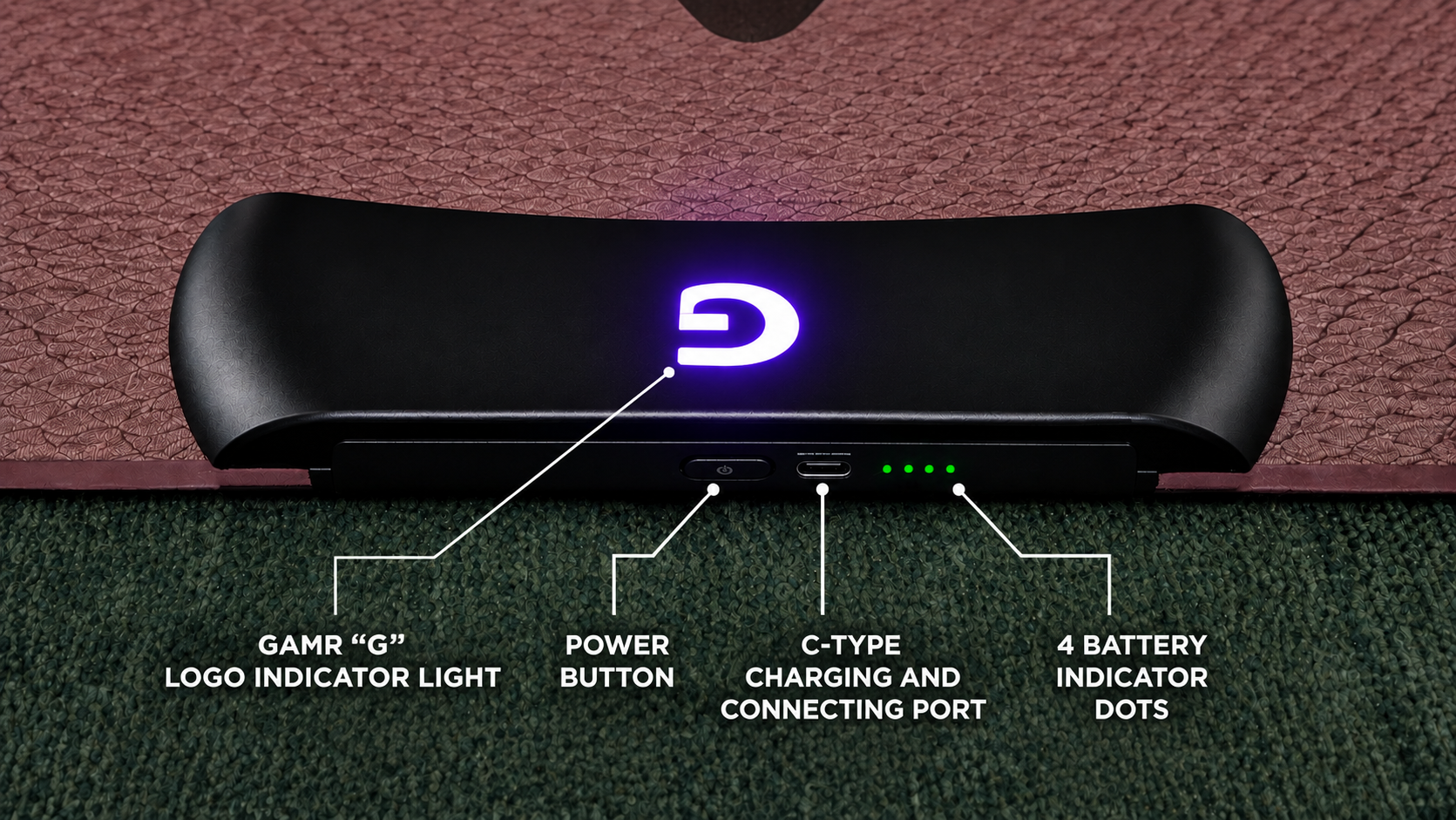
- Locate the Power button on the headboard of your GAMR Play Pad.
- Press and hold the button for a few seconds.
- The GAMR "G" logo lights up.
- Wait for the logo to start blinking.
Pairing over Bluetooth
About pairing mode
A blinking "G" logo means:
- Your Play Pad is powered on.
- Bluetooth pairing mode is active on the Play Pad.
- Your Play Pad is ready to connect to a device.
On your Device:
- Open Settings.
- Select Bluetooth.
- Turn on Bluetooth if it's off.
- Select Pair New Device.
- Look for GAMR Play Pad in the list of available devices.
- Select it and wait a few seconds.
- Successful connection.
Pairing over Cable
- Take the included USB-C to USB-A cable.
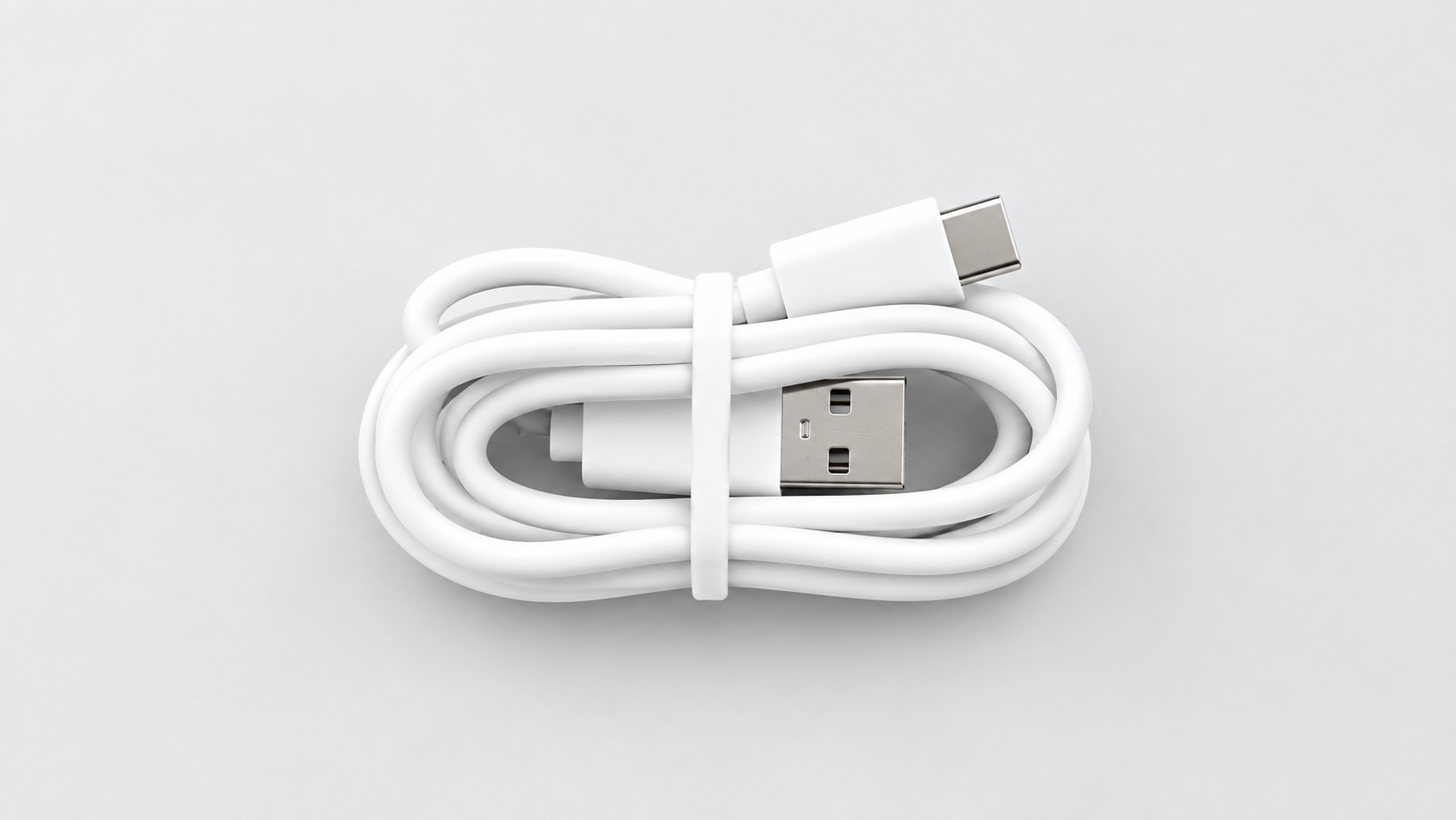
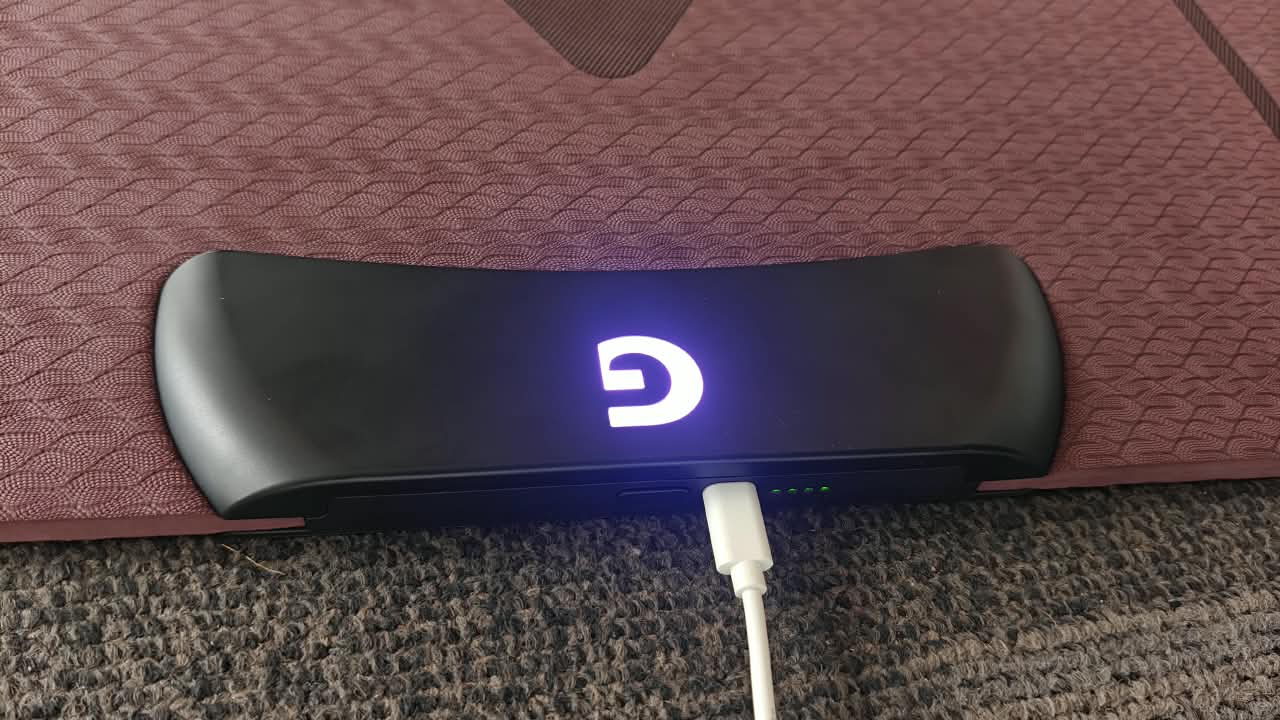
- Connect the USB-C end to your GAMR Play Pad.
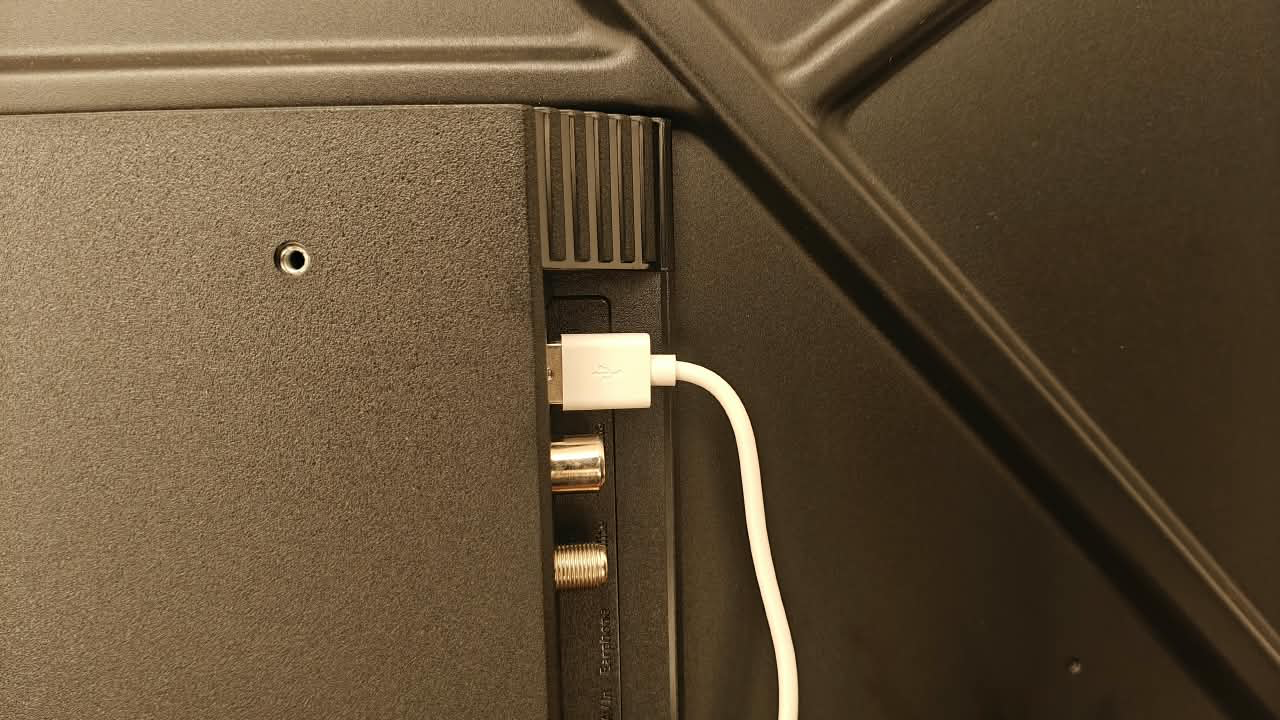
- Connect the USB-A end directly to your display.
- Successful connection
Was this article helpful?
That’s Great!
Thank you for your feedback
Sorry! We couldn't be helpful
Thank you for your feedback
Feedback sent
We appreciate your effort and will try to fix the article